Compare commits
No commits in common. "master" and "0.0.10" have entirely different histories.
@ -23,6 +23,6 @@ indent_size = 4
|
||||
indent_style = tab
|
||||
|
||||
# Indentation override for all JS under lib directory
|
||||
[*.{js,jsx,mjs,cjs,ts,tsx,json}]
|
||||
[*.{js,jsx,mjs,cjs,ts,tsx,json,py}]
|
||||
indent_style = space
|
||||
indent_size = 2
|
||||
|
||||
@ -1,15 +0,0 @@
|
||||
DROPBOX_APP_KEY=
|
||||
ONEDRIVE_CLIENT_ID=
|
||||
ONEDRIVE_AUTHORITY=https://
|
||||
REMOTELYSAVE_WEBSITE=http://127.0.0.1:46683
|
||||
REMOTELYSAVE_CLIENT_ID=cli-xxx
|
||||
GOOGLEDRIVE_CLIENT_ID=xxx.apps.googleusercontent.com
|
||||
GOOGLEDRIVE_CLIENT_SECRET=GOCSPX-sss
|
||||
BOX_CLIENT_ID=
|
||||
BOX_CLIENT_SECRET=
|
||||
PCLOUD_CLIENT_ID=
|
||||
PCLOUD_CLIENT_SECRET=
|
||||
YANDEXDISK_CLIENT_ID=
|
||||
YANDEXDISK_CLIENT_SECRET=
|
||||
KOOFR_CLIENT_ID=
|
||||
KOOFR_CLIENT_SECRET=
|
||||
2
.gitattributes
vendored
2
.gitattributes
vendored
@ -3,5 +3,3 @@
|
||||
*.jpeg filter=lfs diff=lfs merge=lfs -text
|
||||
*.pdf filter=lfs diff=lfs merge=lfs -text
|
||||
*.enc filter=lfs diff=lfs merge=lfs -text
|
||||
*.svg filter=lfs diff=lfs merge=lfs -text
|
||||
*.excalidraw filter=lfs diff=lfs merge=lfs -text
|
||||
|
||||
90
.github/ISSUE_TEMPLATE/bug_report.yml
vendored
90
.github/ISSUE_TEMPLATE/bug_report.yml
vendored
@ -1,90 +0,0 @@
|
||||
name: Bug Report
|
||||
description: Fire a bug report
|
||||
title: "[Bug]: "
|
||||
labels: ["bug"]
|
||||
body:
|
||||
- type: markdown
|
||||
attributes:
|
||||
value: |
|
||||
Thanks for taking the time to fill out this bug report!
|
||||
- type: textarea
|
||||
id: what-happened
|
||||
attributes:
|
||||
label: What happened?
|
||||
description: What did you expect to happen?
|
||||
placeholder: Tell us what you see!
|
||||
validations:
|
||||
required: true
|
||||
- type: dropdown
|
||||
id: os
|
||||
attributes:
|
||||
label: What OS are you using?
|
||||
multiple: true
|
||||
options:
|
||||
- Windows
|
||||
- Linux
|
||||
- macOS
|
||||
- iOS (iPhone, iPad)
|
||||
- Android
|
||||
validations:
|
||||
required: true
|
||||
- type: dropdown
|
||||
id: service
|
||||
attributes:
|
||||
label: What remote cloud services are you using? (Please choose the specified one if it's in the list)
|
||||
multiple: true
|
||||
options:
|
||||
- S3
|
||||
- S3 (Cloudflare R2)
|
||||
- S3 (BackBlaze B2)
|
||||
- S3 (腾讯云 COS Tencent Cloud COS)
|
||||
- S3 (阿里云 OSS Alibaba Cloud OSS)
|
||||
- S3 (MinIO)
|
||||
- S3 (Wasabi)
|
||||
- S3 (Storj)
|
||||
- OneDrive for personal
|
||||
- OneDrive for business
|
||||
- Dropbox
|
||||
- webdav
|
||||
- webdav (ownCloud)
|
||||
- webdav (InfiniCloud (formally TeraCLOUD))
|
||||
- webdav (AList)
|
||||
- webdav (Cloudreve)
|
||||
- webdav (坚果云 JianGuoYun/NutStore)
|
||||
- webdav (NextCloud)
|
||||
- webdav (FastMail)
|
||||
- webdav (rclone webdav)
|
||||
- webdav (nginx)
|
||||
- others
|
||||
validations:
|
||||
required: true
|
||||
- type: input
|
||||
id: version-plugin
|
||||
attributes:
|
||||
label: Version of the plugin
|
||||
description: What version of the plugin are you running?
|
||||
validations:
|
||||
required: false
|
||||
- type: input
|
||||
id: version-obsidian
|
||||
attributes:
|
||||
label: Version of Obsidian
|
||||
description: What version of Obsidian are you running?
|
||||
validations:
|
||||
required: false
|
||||
- type: checkboxes
|
||||
id: using-password
|
||||
attributes:
|
||||
label: Using password or not
|
||||
description: Are you using password (end-to-end encryption) or not?
|
||||
options:
|
||||
- label: Yes.
|
||||
required: false
|
||||
- type: checkboxes
|
||||
id: ensure-no-sensitive-information
|
||||
attributes:
|
||||
label: Ensure no sensitive information
|
||||
description: By submitting this issue, you ensure that no sensitive information is submitted in the issue.
|
||||
options:
|
||||
- label: I ensure that no sensitive information is submitted in the issue.
|
||||
required: true
|
||||
1
.github/ISSUE_TEMPLATE/config.yml
vendored
1
.github/ISSUE_TEMPLATE/config.yml
vendored
@ -1 +0,0 @@
|
||||
blank_issues_enabled: false
|
||||
54
.github/ISSUE_TEMPLATE/feature_request.yml
vendored
54
.github/ISSUE_TEMPLATE/feature_request.yml
vendored
@ -1,54 +0,0 @@
|
||||
name: Feature Request
|
||||
description: Some idea about new features
|
||||
title: "[Feature Request]: "
|
||||
labels: ["enhancement"]
|
||||
body:
|
||||
- type: markdown
|
||||
attributes:
|
||||
value: |
|
||||
Thanks for taking the time to fill out this bug report!
|
||||
- type: textarea
|
||||
id: what-are-you-expecting
|
||||
attributes:
|
||||
label: What feature are you suggesting?
|
||||
description: What feature are you suggesting?
|
||||
validations:
|
||||
required: true
|
||||
- type: dropdown
|
||||
id: service
|
||||
attributes:
|
||||
label: What remote cloud services are you using, or suggesting adding the feature to?
|
||||
multiple: true
|
||||
options:
|
||||
- S3
|
||||
- S3 (Cloudflare R2)
|
||||
- S3 (BackBlaze B2)
|
||||
- S3 (腾讯云 COS Tencent Cloud COS)
|
||||
- S3 (阿里云 OSS Alibaba Cloud OSS)
|
||||
- S3 (MinIO)
|
||||
- S3 (Wasabi)
|
||||
- S3 (Storj)
|
||||
- OneDrive for personal
|
||||
- OneDrive for business
|
||||
- Dropbox
|
||||
- webdav
|
||||
- webdav (ownCloud)
|
||||
- webdav (InfiniCloud (formally TeraCLOUD))
|
||||
- webdav (AList)
|
||||
- webdav (Cloudreve)
|
||||
- webdav (坚果云 JianGuoYun/NutStore)
|
||||
- webdav (NextCloud)
|
||||
- webdav (FastMail)
|
||||
- webdav (rclone webdav)
|
||||
- webdav (nginx)
|
||||
- others
|
||||
validations:
|
||||
required: false
|
||||
- type: checkboxes
|
||||
id: ensure-no-sensitive-information
|
||||
attributes:
|
||||
label: Ensure no sensitive information
|
||||
description: By submitting this issue, you ensure that no sensitive information is submitted in the issue.
|
||||
options:
|
||||
- label: I ensure that no sensitive information is submitted in the issue.
|
||||
required: true
|
||||
45
.github/workflows/auto-build.yml
vendored
45
.github/workflows/auto-build.yml
vendored
@ -5,7 +5,7 @@ name: BuildCI
|
||||
|
||||
on:
|
||||
push:
|
||||
branches: ["**"]
|
||||
branches: [master]
|
||||
pull_request:
|
||||
branches: [master]
|
||||
|
||||
@ -13,57 +13,28 @@ jobs:
|
||||
build:
|
||||
runs-on: ubuntu-latest
|
||||
|
||||
environment: env-for-buildci
|
||||
|
||||
env:
|
||||
DROPBOX_APP_KEY: ${{secrets.DROPBOX_APP_KEY}}
|
||||
ONEDRIVE_CLIENT_ID: ${{secrets.ONEDRIVE_CLIENT_ID}}
|
||||
ONEDRIVE_AUTHORITY: ${{secrets.ONEDRIVE_AUTHORITY}}
|
||||
REMOTELYSAVE_WEBSITE: ${{secrets.REMOTELYSAVE_WEBSITE}}
|
||||
REMOTELYSAVE_CLIENT_ID: ${{secrets.REMOTELYSAVE_CLIENT_ID}}
|
||||
GOOGLEDRIVE_CLIENT_ID: ${{secrets.GOOGLEDRIVE_CLIENT_ID}}
|
||||
GOOGLEDRIVE_CLIENT_SECRET: ${{secrets.GOOGLEDRIVE_CLIENT_SECRET}}
|
||||
BOX_CLIENT_ID: ${{secrets.BOX_CLIENT_ID}}
|
||||
BOX_CLIENT_SECRET: ${{secrets.BOX_CLIENT_SECRET}}
|
||||
PCLOUD_CLIENT_ID: ${{secrets.PCLOUD_CLIENT_ID}}
|
||||
PCLOUD_CLIENT_SECRET: ${{secrets.PCLOUD_CLIENT_SECRET}}
|
||||
YANDEXDISK_CLIENT_ID: ${{secrets.YANDEXDISK_CLIENT_ID}}
|
||||
YANDEXDISK_CLIENT_SECRET: ${{secrets.YANDEXDISK_CLIENT_SECRET}}
|
||||
KOOFR_CLIENT_ID: ${{secrets.KOOFR_CLIENT_ID}}
|
||||
KOOFR_CLIENT_SECRET: ${{secrets.KOOFR_CLIENT_SECRET}}
|
||||
|
||||
strategy:
|
||||
matrix:
|
||||
node-version: [20.x]
|
||||
node-version: [16.x]
|
||||
# See supported Node.js release schedule at https://nodejs.org/en/about/releases/
|
||||
|
||||
steps:
|
||||
- name: Checkout codes
|
||||
uses: actions/checkout@v4
|
||||
uses: actions/checkout@v2
|
||||
with:
|
||||
submodules: recursive
|
||||
- name: Checkout LFS file list
|
||||
run: git lfs ls-files --long | cut -d ' ' -f1 | sort > .lfs-assets-id
|
||||
- name: LFS Cache
|
||||
uses: actions/cache@v4
|
||||
with:
|
||||
path: .git/lfs/objects
|
||||
key: ${{ runner.os }}-lfs-${{ hashFiles('.lfs-assets-id') }}
|
||||
restore-keys: |
|
||||
${{ runner.os }}-lfs-
|
||||
- name: Git LFS Pull
|
||||
run: git lfs pull
|
||||
lfs: true
|
||||
- name: Checkout LFS
|
||||
run: git lfs checkout
|
||||
- name: Use Node.js ${{ matrix.node-version }}
|
||||
uses: actions/setup-node@v4
|
||||
uses: actions/setup-node@v2
|
||||
with:
|
||||
node-version: ${{ matrix.node-version }}
|
||||
- run: npm install
|
||||
- run: npm test
|
||||
- run: npm run build
|
||||
- uses: actions/upload-artifact@v4
|
||||
- uses: actions/upload-artifact@v2
|
||||
with:
|
||||
name: my-dist
|
||||
path: |
|
||||
main.js
|
||||
manifest.json
|
||||
styles.css
|
||||
|
||||
43
.github/workflows/cla.yml
vendored
43
.github/workflows/cla.yml
vendored
@ -1,43 +0,0 @@
|
||||
name: "CLA Assistant"
|
||||
on:
|
||||
issue_comment:
|
||||
types: [created]
|
||||
pull_request_target:
|
||||
types: [opened,closed,synchronize]
|
||||
|
||||
# explicitly configure permissions, in case your GITHUB_TOKEN workflow permissions are set to read-only in repository settings
|
||||
permissions:
|
||||
actions: write
|
||||
contents: write
|
||||
pull-requests: write
|
||||
statuses: write
|
||||
|
||||
jobs:
|
||||
CLAAssistant:
|
||||
runs-on: ubuntu-latest
|
||||
steps:
|
||||
- name: "CLA Assistant"
|
||||
if: (github.event.comment.body == 'recheck' || github.event.comment.body == 'I have read the CLA Document and I hereby sign the CLA') || github.event_name == 'pull_request_target'
|
||||
uses: contributor-assistant/github-action@v2.3.0
|
||||
env:
|
||||
GITHUB_TOKEN: ${{ secrets.GITHUB_TOKEN }}
|
||||
# the below token should have repo scope and must be manually added by you in the repository's secret
|
||||
# This token is required only if you have configured to store the signatures in a remote repository/organization
|
||||
PERSONAL_ACCESS_TOKEN: ${{ secrets.PERSONAL_ACCESS_TOKEN }}
|
||||
with:
|
||||
path-to-signatures: 'signatures/version1/cla.json'
|
||||
path-to-document: 'https://github.com/remotely-save/remotely-save/blob/master/CLA.md' # e.g. a CLA or a DCO document
|
||||
# branch should not be protected
|
||||
branch: 'main'
|
||||
allowlist: bot*
|
||||
|
||||
# the followings are the optional inputs - If the optional inputs are not given, then default values will be taken
|
||||
remote-organization-name: remotely-save
|
||||
remote-repository-name: cla-signed
|
||||
#create-file-commit-message: 'For example: Creating file for storing CLA Signatures'
|
||||
#signed-commit-message: 'For example: $contributorName has signed the CLA in $owner/$repo#$pullRequestNo'
|
||||
custom-notsigned-prcomment: '<br/>Thank you for your submission, we really appreciate it. However, we ask that $you sign our [Contributor License Agreement](https://github.com/remotely-save/remotely-save/blob/master/CLA.md) before we can accept your contribution. You can sign the CLA by just posting a Pull Request Comment same as the below format.<br/>'
|
||||
#custom-pr-sign-comment: 'The signature to be committed in order to sign the CLA'
|
||||
#custom-allsigned-prcomment: 'pull request comment when all contributors has signed, defaults to **CLA Assistant Lite bot** All Contributors have signed the CLA.'
|
||||
#lock-pullrequest-aftermerge: false - if you don't want this bot to automatically lock the pull request after merging (default - true)
|
||||
#use-dco-flag: true - If you are using DCO instead of CLA
|
||||
76
.github/workflows/release.yml
vendored
76
.github/workflows/release.yml
vendored
@ -1,76 +0,0 @@
|
||||
# modified from https://github.com/argenos/nldates-obsidian/blob/master/.github/workflows/release.yml
|
||||
# which is released under MIT License
|
||||
|
||||
# trigger:
|
||||
# modify manifest.json, package.json, versions.json
|
||||
# git tag <version number>
|
||||
# git push origin --tags
|
||||
|
||||
name: Release A New Version
|
||||
|
||||
on:
|
||||
push:
|
||||
tags:
|
||||
- "*" # Push events to matching any tag format, i.e. 1.0, 20.15.10
|
||||
|
||||
jobs:
|
||||
build:
|
||||
runs-on: ubuntu-latest
|
||||
|
||||
environment: env-for-buildci
|
||||
|
||||
env:
|
||||
DROPBOX_APP_KEY: ${{secrets.DROPBOX_APP_KEY}}
|
||||
ONEDRIVE_CLIENT_ID: ${{secrets.ONEDRIVE_CLIENT_ID}}
|
||||
ONEDRIVE_AUTHORITY: ${{secrets.ONEDRIVE_AUTHORITY}}
|
||||
REMOTELYSAVE_WEBSITE: ${{secrets.REMOTELYSAVE_WEBSITE}}
|
||||
REMOTELYSAVE_CLIENT_ID: ${{secrets.REMOTELYSAVE_CLIENT_ID}}
|
||||
GOOGLEDRIVE_CLIENT_ID: ${{secrets.GOOGLEDRIVE_CLIENT_ID}}
|
||||
GOOGLEDRIVE_CLIENT_SECRET: ${{secrets.GOOGLEDRIVE_CLIENT_SECRET}}
|
||||
BOX_CLIENT_ID: ${{secrets.BOX_CLIENT_ID}}
|
||||
BOX_CLIENT_SECRET: ${{secrets.BOX_CLIENT_SECRET}}
|
||||
PCLOUD_CLIENT_ID: ${{secrets.PCLOUD_CLIENT_ID}}
|
||||
PCLOUD_CLIENT_SECRET: ${{secrets.PCLOUD_CLIENT_SECRET}}
|
||||
YANDEXDISK_CLIENT_ID: ${{secrets.YANDEXDISK_CLIENT_ID}}
|
||||
YANDEXDISK_CLIENT_SECRET: ${{secrets.YANDEXDISK_CLIENT_SECRET}}
|
||||
KOOFR_CLIENT_ID: ${{secrets.KOOFR_CLIENT_ID}}
|
||||
KOOFR_CLIENT_SECRET: ${{secrets.KOOFR_CLIENT_SECRET}}
|
||||
|
||||
strategy:
|
||||
matrix:
|
||||
node-version: [20.x]
|
||||
|
||||
steps:
|
||||
- name: Checkout codes
|
||||
uses: actions/checkout@v4
|
||||
with:
|
||||
submodules: recursive
|
||||
- name: Checkout LFS file list
|
||||
run: git lfs ls-files --long | cut -d ' ' -f1 | sort > .lfs-assets-id
|
||||
- name: LFS Cache
|
||||
uses: actions/cache@v4
|
||||
with:
|
||||
path: .git/lfs/objects
|
||||
key: ${{ runner.os }}-lfs-${{ hashFiles('.lfs-assets-id') }}
|
||||
restore-keys: |
|
||||
${{ runner.os }}-lfs-
|
||||
- name: Git LFS Pull
|
||||
run: git lfs pull
|
||||
- name: Use Node.js ${{ matrix.node-version }}
|
||||
uses: actions/setup-node@v4
|
||||
with:
|
||||
node-version: ${{ matrix.node-version }}
|
||||
- run: npm install
|
||||
- run: npm test
|
||||
- run: npm run build
|
||||
- name: Create Release And Upload
|
||||
uses: softprops/action-gh-release@v2
|
||||
with:
|
||||
files: |
|
||||
main.js
|
||||
manifest.json
|
||||
styles.css
|
||||
token: ${{ secrets.GITHUB_TOKEN }}
|
||||
draft: false
|
||||
prerelease: false
|
||||
make_latest: true
|
||||
4
.gitignore
vendored
4
.gitignore
vendored
@ -5,7 +5,6 @@
|
||||
# npm
|
||||
node_modules
|
||||
package-lock.json
|
||||
pnpm-lock.yaml
|
||||
|
||||
# build
|
||||
main.js
|
||||
@ -14,8 +13,5 @@ main.js
|
||||
# obsidian
|
||||
data.json
|
||||
|
||||
# debug
|
||||
logs.txt
|
||||
|
||||
# hidden files
|
||||
.*
|
||||
|
||||
2
.prettierignore
Normal file
2
.prettierignore
Normal file
@ -0,0 +1,2 @@
|
||||
node_modules/
|
||||
main.js
|
||||
23
CLA.md
23
CLA.md
@ -1,23 +0,0 @@
|
||||
In order to clarify the intellectual property license granted with Contributions from any person or entity, Remotely Save dev team ("Remotely Save") must have on file a signed Contributor License Agreement ("CLA") from each Contributor, indicating agreement with the license terms below. This agreement is for your protection as a Contributor as well as the protection of Remotely Save and its users. It does not change your rights to use your own Contributions for any other purpose.
|
||||
|
||||
You accept and agree to the following terms and conditions for Your Contributions (present and future) that you submit to Remotely Save. Except for the license granted herein to Remotely Save and recipients of software distributed by Remotely Save, You reserve all right, title, and interest in and to Your Contributions.
|
||||
|
||||
1. Definitions.
|
||||
|
||||
"You" (or "Your") shall mean the copyright owner or legal entity authorized by the copyright owner that is making this Agreement with Remotely Save. For legal entities, the entity making a Contribution and all other entities that control, are controlled by, or are under common control with that entity are considered to be a single Contributor. For the purposes of this definition, "control" means (i) the power, direct or indirect, to cause the direction or management of such entity, whether by contract or otherwise, or (ii) ownership of fifty percent (50%) or more of the outstanding shares, or (iii) beneficial ownership of such entity.
|
||||
|
||||
"Contribution" shall mean any original work of authorship, including any modifications or additions to an existing work, that is intentionally submitted by You to Remotely Save for inclusion in, or documentation of, any of the products owned or managed by Remotely Save (the "Work"). For the purposes of this definition, "submitted" means any form of electronic, verbal, or written communication sent to Remotely Save or its representatives, including but not limited to communication on electronic mailing lists, source code control systems, and issue tracking systems that are managed by, or on behalf of, Remotely Save for the purpose of discussing and improving the Work, but excluding communication that is conspicuously marked or otherwise designated in writing by You as "Not a Contribution."
|
||||
|
||||
2. Grant of Copyright License. Subject to the terms and conditions of this Agreement, You hereby grant to Remotely Save and to recipients of software distributed by Remotely Save a perpetual, worldwide, non-exclusive, no-charge, royalty-free, irrevocable copyright license to reproduce, prepare derivative works of, publicly display, publicly perform, sublicense, and distribute Your Contributions and such derivative works.
|
||||
|
||||
3. Grant of Patent License. Subject to the terms and conditions of this Agreement, You hereby grant to Remotely Save and to recipients of software distributed by Remotely Save a perpetual, worldwide, non-exclusive, no-charge, royalty-free, irrevocable (except as stated in this section) patent license to make, have made, use, offer to sell, sell, import, and otherwise transfer the Work, where such license applies only to those patent claims licensable by You that are necessarily infringed by Your Contribution(s) alone or by combination of Your Contribution(s) with the Work to which such Contribution(s) was submitted. If any entity institutes patent litigation against You or any other entity (including a cross-claim or counterclaim in a lawsuit) alleging that your Contribution, or the Work to which you have contributed, constitutes direct or contributory patent infringement, then any patent licenses granted to that entity under this Agreement for that Contribution or Work shall terminate as of the date such litigation is filed.
|
||||
|
||||
4. You represent that you are legally entitled to grant the above license. If your employer(s) has rights to intellectual property that you create that includes your Contributions, you represent that you have received permission to make Contributions on behalf of that employer, that your employer has waived such rights for your Contributions to Remotely Save, or that your employer has executed a separate Corporate CLA with Remotely Save.
|
||||
|
||||
5. You represent that each of Your Contributions is Your original creation (see section 7 for submissions on behalf of others). You represent that Your Contribution submissions include complete details of any third-party license or other restriction (including, but not limited to, related patents and trademarks) of which you are personally aware and which are associated with any part of Your Contributions.
|
||||
|
||||
6. You are not expected to provide support for Your Contributions, except to the extent You desire to provide support. You may provide support for free, for a fee, or not at all. Unless required by applicable law or agreed to in writing, You provide Your Contributions on an "AS IS" BASIS, WITHOUT WARRANTIES OR CONDITIONS OF ANY KIND, either express or implied, including, without limitation, any warranties or conditions of TITLE, NON-INFRINGEMENT, MERCHANTABILITY, or FITNESS FOR A PARTICULAR PURPOSE.
|
||||
|
||||
7. Should You wish to submit work that is not Your original creation, You may submit it to Remotely Save separately from any Contribution, identifying the complete details of its source and of any license or other restriction (including, but not limited to, related patents, trademarks, and license agreements) of which you are personally aware, and conspicuously marking the work as "Submitted on behalf of a third-party: [named here]".
|
||||
|
||||
8. You agree to notify Remotely Save of any facts or circumstances of which you become aware that would make these representations inaccurate in any respect.
|
||||
@ -1,22 +0,0 @@
|
||||
# Contributing
|
||||
|
||||
## What
|
||||
|
||||
Starting from April 29, 2024, all individual contributors' contributions are only possibly accepted after they sign the CLA.
|
||||
|
||||
We do not accept corporate contributions at this moment.
|
||||
|
||||
You can check out [CLA](./CLA.md).
|
||||
|
||||
## Steps
|
||||
|
||||
1. Make some changes to the code. Open a pull request.
|
||||
2. A rebot will check the status.
|
||||

|
||||
3. Read the [CLA](./CLA.md) carefully and make a decision.
|
||||
4. If you decide to sign the CLA, please make a comment "I have read the CLA Document and I hereby sign the CLA".
|
||||
5. If you decide to not sign the CLA, please close the PR.
|
||||
6. The robot should recheck and pass the check automatically.
|
||||

|
||||
7. Your pr will be reviewed.
|
||||
8. If you sign the CLA and submit some more PRs, the robot should pass the test automatically.
|
||||
203
LICENSE
203
LICENSE
@ -1,3 +1,202 @@
|
||||
The codes or files or subfolders inside the folder `src`, `tests`, `docs`, `assets`, are released under the "Open Source" license: "Apache License, version 2.0", described at: https://www.apache.org/licenses/LICENSE-2.0 .
|
||||
Apache License
|
||||
Version 2.0, January 2004
|
||||
http://www.apache.org/licenses/
|
||||
|
||||
TERMS AND CONDITIONS FOR USE, REPRODUCTION, AND DISTRIBUTION
|
||||
|
||||
1. Definitions.
|
||||
|
||||
"License" shall mean the terms and conditions for use, reproduction,
|
||||
and distribution as defined by Sections 1 through 9 of this document.
|
||||
|
||||
"Licensor" shall mean the copyright owner or entity authorized by
|
||||
the copyright owner that is granting the License.
|
||||
|
||||
"Legal Entity" shall mean the union of the acting entity and all
|
||||
other entities that control, are controlled by, or are under common
|
||||
control with that entity. For the purposes of this definition,
|
||||
"control" means (i) the power, direct or indirect, to cause the
|
||||
direction or management of such entity, whether by contract or
|
||||
otherwise, or (ii) ownership of fifty percent (50%) or more of the
|
||||
outstanding shares, or (iii) beneficial ownership of such entity.
|
||||
|
||||
"You" (or "Your") shall mean an individual or Legal Entity
|
||||
exercising permissions granted by this License.
|
||||
|
||||
"Source" form shall mean the preferred form for making modifications,
|
||||
including but not limited to software source code, documentation
|
||||
source, and configuration files.
|
||||
|
||||
"Object" form shall mean any form resulting from mechanical
|
||||
transformation or translation of a Source form, including but
|
||||
not limited to compiled object code, generated documentation,
|
||||
and conversions to other media types.
|
||||
|
||||
"Work" shall mean the work of authorship, whether in Source or
|
||||
Object form, made available under the License, as indicated by a
|
||||
copyright notice that is included in or attached to the work
|
||||
(an example is provided in the Appendix below).
|
||||
|
||||
"Derivative Works" shall mean any work, whether in Source or Object
|
||||
form, that is based on (or derived from) the Work and for which the
|
||||
editorial revisions, annotations, elaborations, or other modifications
|
||||
represent, as a whole, an original work of authorship. For the purposes
|
||||
of this License, Derivative Works shall not include works that remain
|
||||
separable from, or merely link (or bind by name) to the interfaces of,
|
||||
the Work and Derivative Works thereof.
|
||||
|
||||
"Contribution" shall mean any work of authorship, including
|
||||
the original version of the Work and any modifications or additions
|
||||
to that Work or Derivative Works thereof, that is intentionally
|
||||
submitted to Licensor for inclusion in the Work by the copyright owner
|
||||
or by an individual or Legal Entity authorized to submit on behalf of
|
||||
the copyright owner. For the purposes of this definition, "submitted"
|
||||
means any form of electronic, verbal, or written communication sent
|
||||
to the Licensor or its representatives, including but not limited to
|
||||
communication on electronic mailing lists, source code control systems,
|
||||
and issue tracking systems that are managed by, or on behalf of, the
|
||||
Licensor for the purpose of discussing and improving the Work, but
|
||||
excluding communication that is conspicuously marked or otherwise
|
||||
designated in writing by the copyright owner as "Not a Contribution."
|
||||
|
||||
"Contributor" shall mean Licensor and any individual or Legal Entity
|
||||
on behalf of whom a Contribution has been received by Licensor and
|
||||
subsequently incorporated within the Work.
|
||||
|
||||
2. Grant of Copyright License. Subject to the terms and conditions of
|
||||
this License, each Contributor hereby grants to You a perpetual,
|
||||
worldwide, non-exclusive, no-charge, royalty-free, irrevocable
|
||||
copyright license to reproduce, prepare Derivative Works of,
|
||||
publicly display, publicly perform, sublicense, and distribute the
|
||||
Work and such Derivative Works in Source or Object form.
|
||||
|
||||
3. Grant of Patent License. Subject to the terms and conditions of
|
||||
this License, each Contributor hereby grants to You a perpetual,
|
||||
worldwide, non-exclusive, no-charge, royalty-free, irrevocable
|
||||
(except as stated in this section) patent license to make, have made,
|
||||
use, offer to sell, sell, import, and otherwise transfer the Work,
|
||||
where such license applies only to those patent claims licensable
|
||||
by such Contributor that are necessarily infringed by their
|
||||
Contribution(s) alone or by combination of their Contribution(s)
|
||||
with the Work to which such Contribution(s) was submitted. If You
|
||||
institute patent litigation against any entity (including a
|
||||
cross-claim or counterclaim in a lawsuit) alleging that the Work
|
||||
or a Contribution incorporated within the Work constitutes direct
|
||||
or contributory patent infringement, then any patent licenses
|
||||
granted to You under this License for that Work shall terminate
|
||||
as of the date such litigation is filed.
|
||||
|
||||
4. Redistribution. You may reproduce and distribute copies of the
|
||||
Work or Derivative Works thereof in any medium, with or without
|
||||
modifications, and in Source or Object form, provided that You
|
||||
meet the following conditions:
|
||||
|
||||
(a) You must give any other recipients of the Work or
|
||||
Derivative Works a copy of this License; and
|
||||
|
||||
(b) You must cause any modified files to carry prominent notices
|
||||
stating that You changed the files; and
|
||||
|
||||
(c) You must retain, in the Source form of any Derivative Works
|
||||
that You distribute, all copyright, patent, trademark, and
|
||||
attribution notices from the Source form of the Work,
|
||||
excluding those notices that do not pertain to any part of
|
||||
the Derivative Works; and
|
||||
|
||||
(d) If the Work includes a "NOTICE" text file as part of its
|
||||
distribution, then any Derivative Works that You distribute must
|
||||
include a readable copy of the attribution notices contained
|
||||
within such NOTICE file, excluding those notices that do not
|
||||
pertain to any part of the Derivative Works, in at least one
|
||||
of the following places: within a NOTICE text file distributed
|
||||
as part of the Derivative Works; within the Source form or
|
||||
documentation, if provided along with the Derivative Works; or,
|
||||
within a display generated by the Derivative Works, if and
|
||||
wherever such third-party notices normally appear. The contents
|
||||
of the NOTICE file are for informational purposes only and
|
||||
do not modify the License. You may add Your own attribution
|
||||
notices within Derivative Works that You distribute, alongside
|
||||
or as an addendum to the NOTICE text from the Work, provided
|
||||
that such additional attribution notices cannot be construed
|
||||
as modifying the License.
|
||||
|
||||
You may add Your own copyright statement to Your modifications and
|
||||
may provide additional or different license terms and conditions
|
||||
for use, reproduction, or distribution of Your modifications, or
|
||||
for any such Derivative Works as a whole, provided Your use,
|
||||
reproduction, and distribution of the Work otherwise complies with
|
||||
the conditions stated in this License.
|
||||
|
||||
5. Submission of Contributions. Unless You explicitly state otherwise,
|
||||
any Contribution intentionally submitted for inclusion in the Work
|
||||
by You to the Licensor shall be under the terms and conditions of
|
||||
this License, without any additional terms or conditions.
|
||||
Notwithstanding the above, nothing herein shall supersede or modify
|
||||
the terms of any separate license agreement you may have executed
|
||||
with Licensor regarding such Contributions.
|
||||
|
||||
6. Trademarks. This License does not grant permission to use the trade
|
||||
names, trademarks, service marks, or product names of the Licensor,
|
||||
except as required for reasonable and customary use in describing the
|
||||
origin of the Work and reproducing the content of the NOTICE file.
|
||||
|
||||
7. Disclaimer of Warranty. Unless required by applicable law or
|
||||
agreed to in writing, Licensor provides the Work (and each
|
||||
Contributor provides its Contributions) on an "AS IS" BASIS,
|
||||
WITHOUT WARRANTIES OR CONDITIONS OF ANY KIND, either express or
|
||||
implied, including, without limitation, any warranties or conditions
|
||||
of TITLE, NON-INFRINGEMENT, MERCHANTABILITY, or FITNESS FOR A
|
||||
PARTICULAR PURPOSE. You are solely responsible for determining the
|
||||
appropriateness of using or redistributing the Work and assume any
|
||||
risks associated with Your exercise of permissions under this License.
|
||||
|
||||
8. Limitation of Liability. In no event and under no legal theory,
|
||||
whether in tort (including negligence), contract, or otherwise,
|
||||
unless required by applicable law (such as deliberate and grossly
|
||||
negligent acts) or agreed to in writing, shall any Contributor be
|
||||
liable to You for damages, including any direct, indirect, special,
|
||||
incidental, or consequential damages of any character arising as a
|
||||
result of this License or out of the use or inability to use the
|
||||
Work (including but not limited to damages for loss of goodwill,
|
||||
work stoppage, computer failure or malfunction, or any and all
|
||||
other commercial damages or losses), even if such Contributor
|
||||
has been advised of the possibility of such damages.
|
||||
|
||||
9. Accepting Warranty or Additional Liability. While redistributing
|
||||
the Work or Derivative Works thereof, You may choose to offer,
|
||||
and charge a fee for, acceptance of support, warranty, indemnity,
|
||||
or other liability obligations and/or rights consistent with this
|
||||
License. However, in accepting such obligations, You may act only
|
||||
on Your own behalf and on Your sole responsibility, not on behalf
|
||||
of any other Contributor, and only if You agree to indemnify,
|
||||
defend, and hold each Contributor harmless for any liability
|
||||
incurred by, or claims asserted against, such Contributor by reason
|
||||
of your accepting any such warranty or additional liability.
|
||||
|
||||
END OF TERMS AND CONDITIONS
|
||||
|
||||
APPENDIX: How to apply the Apache License to your work.
|
||||
|
||||
To apply the Apache License to your work, attach the following
|
||||
boilerplate notice, with the fields enclosed by brackets "[]"
|
||||
replaced with your own identifying information. (Don't include
|
||||
the brackets!) The text should be enclosed in the appropriate
|
||||
comment syntax for the file format. We also recommend that a
|
||||
file or class name and description of purpose be included on the
|
||||
same "printed page" as the copyright notice for easier
|
||||
identification within third-party archives.
|
||||
|
||||
Copyright [yyyy] [name of copyright owner]
|
||||
|
||||
Licensed under the Apache License, Version 2.0 (the "License");
|
||||
you may not use this file except in compliance with the License.
|
||||
You may obtain a copy of the License at
|
||||
|
||||
http://www.apache.org/licenses/LICENSE-2.0
|
||||
|
||||
Unless required by applicable law or agreed to in writing, software
|
||||
distributed under the License is distributed on an "AS IS" BASIS,
|
||||
WITHOUT WARRANTIES OR CONDITIONS OF ANY KIND, either express or implied.
|
||||
See the License for the specific language governing permissions and
|
||||
limitations under the License.
|
||||
|
||||
The codes or files or subfolders inside the folder `pro`, are released under the "Source Available" license: "PolyForm Strict License 1.0.0", described at: https://polyformproject.org/licenses/strict/1.0.0/ .
|
||||
|
||||
231
README.md
231
README.md
@ -1,221 +1,26 @@
|
||||
# Remotely Save
|
||||
# Save Remote
|
||||
|
||||
English | [中文](./README.zh-cn.md)
|
||||
|
||||
This is yet another unofficial sync plugin for Obsidian. If you like it or find it useful, please consider give it a [star ](https://github.com/fyears/remotely-save) on Github.
|
||||
|
||||
[](https://github.com/fyears/remotely-save/actions/workflows/auto-build.yml)
|
||||
|
||||
[](https://github.com/fyears/remotely-save/releases)
|
||||
|
||||
## Disclaimer
|
||||
|
||||
- **This is NOT the [official sync service](https://obsidian.md/sync) provided by Obsidian.**
|
||||
|
||||
## !!!Caution!!!
|
||||
|
||||
**ALWAYS, ALWAYS, backup your vault before using this plugin.**
|
||||
|
||||
## Features
|
||||
|
||||
- Supports:
|
||||
- Amazon S3 or S3-compatible (Cloudflare R2 / BackBlaze B2 / MinIO / ...)
|
||||
- Dropbox
|
||||
- OneDrive for personal (App Folder)
|
||||
- OneDrive for personal (Full) (PRO feature)
|
||||
- Webdav (NextCloud / InfiniCloud / Synology webdav server / ...)
|
||||
- Webdis
|
||||
- Google Drive (GDrive) (PRO feature)
|
||||
- Box (PRO feature)
|
||||
- pCloud (PRO feature)
|
||||
- Yandex Disk (PRO feature)
|
||||
- Koofr (PRO feature)
|
||||
- Azure Blob Storage (PRO feature)
|
||||
- [Here](./docs/services_connectable_or_not.md) shows more connectable (or not-connectable) services in details.
|
||||
- **Obsidian Mobile supported.** Vaults can be synced across mobile and desktop devices with the cloud service as the "broker".
|
||||
- **[End-to-end encryption](./docs/encryption/README.md) supported.** Files would be encrypted using openssl / rclone crypt format before being sent to the cloud **if** user specify a password.
|
||||
- **Scheduled auto sync supported.** You can also manually trigger the sync using sidebar ribbon, or using the command from the command palette (or even bind the hot key combination to the command then press the hot key combination).
|
||||
- **[Minimal Intrusive](./docs/minimal_intrusive_design.md).**
|
||||
- **Skip Large files** and **skip paths** by custom regex conditions!
|
||||
- **[Sync Algorithm](./docs/sync_algorithm/v3/intro.md) is provided for discussion.**
|
||||
- **[Basic Conflict Detection And Handling](./docs/sync_algorithm/v3/intro.md)** for free version. **[Advanced Smart Conflict Handling](./pro/README.md)** for PRO version.
|
||||
- Source Available. See [License](./LICENSE) for details.
|
||||
|
||||
## Limitations
|
||||
|
||||
- **Cloud services cost you money.** Always be aware of the costs and pricing. Specifically, all the operations, including but not limited to downloading, uploading, listing all files, calling any api, storage sizes, may or may not cost you money.
|
||||
- **Some limitations from the browser environment.** More technical details are [in the doc](./docs/browser_env.md).
|
||||
- **You should protect your `data.json` file.** The file contains sensitive information.
|
||||
- It's strongly advised **NOT** to share your `data.json` file to anyone.
|
||||
- It's usually **NOT** a good idea to check the file into version control. By default, the plugin tries to create a `.gitignore` file inside the plugin directory if it doesn't exist, for ignoring `data.json` in the `git` version control. If you know exactly what it means and want to remove the setting, please modify the `.gitignore` file or set it to be empty.
|
||||
- **Obsidian API on Mobile has performance issues syncing large files (>= 50 MB).**
|
||||
- Setting the "Skip Large Files" option can help resolve issues related to syncing large files.
|
||||
|
||||
## Questions, Suggestions, Or Bugs
|
||||
|
||||
You are greatly welcome to ask questions, post any suggestions, or report any bugs! The project is mainly maintained on GitHub:
|
||||
|
||||
- Questions: [GitHub repo Discussions](https://github.com/remotely-save/remotely-save/discussions)
|
||||
- Suggestions: also in [GitHub repo Discussions](https://github.com/remotely-save/remotely-save/discussions)
|
||||
- Bugs: [GitHub repo Issues](https://github.com/remotely-save/remotely-save/issues) (NOT Discussion)
|
||||
|
||||
Additionally, the plugin author may occasionally visit Obsidian official forum and official Discord server, and pay attention to this-plugin-related information there.
|
||||
This is yet another sync plugin for Obsidian.
|
||||
|
||||
## Download and Install
|
||||
|
||||
- Option #1: Search in the official "community plugin list", or visit this: [https://obsidian.md/plugins?id=remotely-save](https://obsidian.md/plugins?id=remotely-save) (which should redirect you into Obsidian app), then install the plugin.
|
||||
- Option #2: You can also use [Obsidian42 - BRAT](https://github.com/TfTHacker/obsidian42-brat) to install this plugin. Input `remotely-save/remotely-save` in the configuration of BRAT.
|
||||
- Option #3: [](https://github.com/fyears/remotely-save/releases) Manually download assets (`main.js`, `manifest.json`, `styles.css`) from the latest release.
|
||||
- Option #4: [](https://github.com/fyears/remotely-save/actions/workflows/auto-build.yml) Every artifacts are placed in the "Summary" under every successful builds. It's automatically generated by every commit, may break something.
|
||||
[](https://github.com/fyears/obsidian-save-remote/actions/workflows/auto-build.yml)
|
||||
|
||||
Every artifacts are placed in the "Summary" under every successful builds.
|
||||
|
||||
Besides manually download the files, you can also use [Obsidian42 - BRAT](https://github.com/TfTHacker/obsidian42-brat) to install this plugin.
|
||||
|
||||
## Disclaimer
|
||||
|
||||
**This is NOT the official sync service provided by Obsidian.**
|
||||
|
||||
## !!!Caution!!!
|
||||
|
||||
As of October 2021, the plugin is under development. **DO NOT USE IT for any serious vaults.** Prepare for data loss!
|
||||
|
||||
## Usage
|
||||
|
||||
### S3
|
||||
Remote service in support list:
|
||||
|
||||
- Tutorials / Examples:
|
||||
- [Cloudflare R2](./docs/remote_services/s3_cloudflare_r2/README.md)
|
||||
- [BackBlaze B2](./docs/remote_services/s3_backblaze_b2/README.md)
|
||||
- [Storj](./docs/remote_services/s3_storj_io/README.md)
|
||||
- [腾讯云 COS](./docs/remote_services/s3_tencent_cloud_cos/README.zh-cn.md) | [Tencent Cloud COS](./docs/remote_services/s3_tencent_cloud_cos/README.md)
|
||||
- [MinIO](./docs/remote_services/s3_minio/README.md)
|
||||
- [又拍云](./docs/remote_services/s3_upyun/README.zh-cn.md)
|
||||
- Prepare your S3 (-compatible) service information: [endpoint, region](https://docs.aws.amazon.com/general/latest/gr/s3.html), [access key id, secret access key](https://docs.aws.amazon.com/sdk-for-javascript/v3/developer-guide/getting-your-credentials.html), bucket name.
|
||||
- If you are using AWS S3, create [policy and user](./docs/remote_services/s3_general/s3_user_policy.md).
|
||||
- Very old version of Obsidian needs [configuring CORS](./docs/remote_services/s3_general/s3_cors_configure.md).
|
||||
- Download and enable this plugin.
|
||||
- Enter your information to the settings of this plugin.
|
||||
- If you do not set the prefix in the settings, the bucket should be empty and solely for syncing a vault. You can set the prefix in the settings so that the same bucket can store multiple vaults.
|
||||
- If you want to enable end-to-end encryption, also set a password in settings. If you do not specify a password, the files and folders are synced in plain, original content to the cloud.
|
||||
- Click the new "circle arrow" icon on the ribbon (the left sidebar), **every time** you want to sync your vault between local and remote. (Or, you could configure auto sync in the settings panel (See next chapter).) While syncing, the icon becomes "two half-circle arrows". Besides clicking the icon on the sidebar ribbon, you can also activate the corresponding command in the command palette.
|
||||
- **Be patient while syncing.** Especially in the first-time sync.
|
||||
- If you want to sync the files across multiple devices, **your vault name should be the same** while using default settings.
|
||||
|
||||
### Dropbox
|
||||
|
||||
- **This plugin is NOT an official Dropbox product.** The plugin just uses Dropbox's public API.
|
||||
- After the authorization, the plugin can read your name and email (which cannot be unselected on Dropbox api), and read and write files in your Dropbox's `/Apps/remotely-save` folder.
|
||||
- If you decide to authorize this plugin to connect to Dropbox, please go to plugin's settings, and choose Dropbox then follow the instructions. [More with screenshot is here](./docs/dropbox_review_material/README.md).
|
||||
- Password-based end-to-end encryption is also supported. But please be aware that **the vault name itself is not encrypted**.
|
||||
- If you want to sync the files across multiple devices, **your vault name should be the same** while using default settings.
|
||||
|
||||
### OneDrive for personal (App Folder)
|
||||
|
||||
- **This plugin is NOT an official Microsoft / OneDrive product.** The plugin just uses Microsoft's [OneDrive's public API](https://docs.microsoft.com/en-us/onedrive/developer/rest-api).
|
||||
- This plugin only works for "OneDrive for personal", and not works for "OneDrive for Business" (yet). See [#11](https://github.com/fyears/remotely-save/issues/11) to further details.
|
||||
- After the authorization, the plugin can read your name and email, and read and write files in your OneDrive's `/Apps/remotely-save` folder. **The free version of Remotely Save only connects to App Folder, while the PRO version can connect to the root folder in Onedrive. See below PRO part.**
|
||||
- If you decide to authorize this plugin to connect to OneDrive, please go to plugin's settings, and choose OneDrive then follow the instructions.
|
||||
- Password-based end-to-end encryption is also supported. But please be aware that **the vault name itself is not encrypted**.
|
||||
- If you want to sync the files across multiple devices, **your vault name should be the same** while using default settings.
|
||||
- You might also want to checkout [faq for OneDrive](./docs/remote_services/onedrive/README.md).
|
||||
|
||||
### webdav
|
||||
|
||||
- Tutorials / Examples:
|
||||
- [Nextcloud](./docs/remote_services/webdav_nextcloud/README.md)
|
||||
- [The Good Cloud](./docs/remote_services/webdav_thegoodcloud/README.md)
|
||||
- [ownCloud](./docs/remote_services/webdav_owncloud/README.md)
|
||||
- [InfiniCloud](./docs/remote_services/webdav_infinicloud_teracloud/README.md)
|
||||
- [Synology webdav server](./docs/remote_services/webdav_synology_webdav_server/README.md) | [群晖 webdav server](./docs/remote_services/webdav_synology_webdav_server/README.zh-cn.md)
|
||||
- [dufs](./docs/remote_services/webdav_dufs/README.md)
|
||||
- [AList(中文)](./docs/remote_services/webdav_alist/README.zh-cn.md) | [AList (English)](./docs/remote_services/webdav_alist/README.md)
|
||||
- [坚果云](./docs/remote_services/webdav_jianguoyun/README.zh-cn.md) | [JianGuoYun/NutStore](./docs/remote_services/webdav_jianguoyun/README.md)
|
||||
- [Open Media Vault](./docs/remote_services/webdav_openmediavault/README.md)
|
||||
- [Nginx (`ngx_http_dav_module`, `nginx-dav-ext-module`, with Docker)](./docs/remote_services/webdav_nginx/README.md)
|
||||
- [Apache (with Docker)](./docs/remote_services/webdav_apache/README.md)
|
||||
- [Caddy with `http.handlers.webdav` module](./docs/remote_services/webdav_caddy/README.md)
|
||||
- Very old version of Obsidian needs [configuring CORS](./docs/remote_services/webdav_general/webav_cors.md).
|
||||
- Your data would be synced to a `${vaultName}` sub folder on your webdav server.
|
||||
- Password-based end-to-end encryption is also supported. But please be aware that **the vault name itself is not encrypted**.
|
||||
- If you want to sync the files across multiple devices, **your vault name should be the same** while using default settings.
|
||||
|
||||
### Webdis
|
||||
|
||||
- Tutorials:
|
||||
- [Webdis](./docs/remote_services/webdis/README.md)
|
||||
- Mostly experimental.
|
||||
- You have to setup and protect your web server by yourself.
|
||||
|
||||
### Onedrive (Full access) (PRO feature)
|
||||
|
||||
PRO (paid) feature "sync with Onedrive (Full)" allows users to to sync with Onedrive root folder. Tutorials and limitations are documented [here](./docs/remote_services/onedrivefull/README.md).
|
||||
|
||||
### Google Drive (GDrive) (PRO feature)
|
||||
|
||||
PRO (paid) feature "sync with Google Drive" allows users to to sync with Google Drive. Tutorials and limitations are documented [here](./docs/remote_services/googledrive/README.md).
|
||||
|
||||
### Box (PRO feature)
|
||||
|
||||
PRO (paid) feature "sync with Box" allows users to to sync with Box. Tutorials and limitations are documented [here](./docs/remote_services/box/README.md).
|
||||
|
||||
### pCloud (PRO feature)
|
||||
|
||||
PRO (paid) feature "sync with pCloud" allows users to to sync with pCloud (using its native API instead of webdav). Tutorials and limitations are documented [here](./docs/remote_services/pcloud/README.md).
|
||||
|
||||
### Yandex Disk (PRO feature)
|
||||
|
||||
PRO (paid) feature "sync with Yandex Disk" allows users to to sync with Yandex Disk (using its native API instead of webdav). Tutorials and limitations are documented [here](./docs/remote_services/yandexdisk/README.md).
|
||||
|
||||
### Koofr (PRO feature)
|
||||
|
||||
PRO (paid) feature "sync with Koofr" allows users to to sync with Koofr (using its native API instead of webdav). Tutorials and limitations are documented [here](./docs/remote_services/koofr/README.md).
|
||||
|
||||
### Azure Blob Storage (PRO feature)
|
||||
|
||||
PRO (paid) feature "sync with Azure Blob Storage" allows users to to sync with Azure Blob Storage. Tutorials and limitations are documented [here](./docs/remote_services/azureblobstorage/README.md).
|
||||
|
||||
## Smart Conflict (PRO feature)
|
||||
|
||||
Basic (free) version can detect conflicts, but users have to choose to keep newer version or larger version of the files.
|
||||
|
||||
PRO (paid) feature "Smart Conflict" gives users one more option: merge small markdown files, or duplicate large markdown files or any-size non-markdown files.
|
||||
|
||||
See documents [here](./docs/pro/README.md)
|
||||
|
||||
## Scheduled Auto Sync
|
||||
|
||||
- You can configure auto syncing every N minutes in settings.
|
||||
- In auto sync mode, if any error occurs, the plugin would **fail silently**.
|
||||
- Auto sync only works when Obsidian is being opened. It's **technically impossible** to auto sync while Obsidian is in background, because the plugin just works in the browser environment provided by Obsidian.
|
||||
|
||||
## Sync On Save
|
||||
|
||||
- You can configure sync on save in settings.
|
||||
- In sync on save mode, if any error occurs, the plugin would **fail silently**.
|
||||
|
||||
## Config Folder / Files and Bookmarks
|
||||
|
||||
By default, the plugin doesn't sync config folder / files of obsidian (normally `.obsidian` folder) because it's one of the hidden files.
|
||||
|
||||
However, in the latest version, you can enable syncing config folder in settings. Please be aware that it's an experimental feature. Notably some config files' modified times are changed everytime when Obsidian is opened, and this destroys the assumptions of the plugin, so some information may not be synced properly.
|
||||
|
||||
Moreover, the bookmarks of Obsidian are actually stored in `.obsidian/bookmarks.json` file. You can also set syncing this file (instead of the whole config folder) in settings. The plugin will keep the latest modified one across devices.
|
||||
|
||||
## Hidden Files Or Folders
|
||||
|
||||
**By default, all files or folder starting with `.` (dot) or `_` (underscore) are treated as hidden files, and would NOT be synced.** It's useful if you have some files just staying locally. But this strategy also means that themes / other plugins / settings of this plugin would neither be synced.
|
||||
|
||||
In the latest version, you can change the settings to allow syncing `_` files or folders, as well as `.obsidian` special config folder as described above (but not any other `.` files or folders).
|
||||
|
||||
## PRO (paid) Features
|
||||
|
||||
See [PRO](./docs/pro/README.md) for more details.
|
||||
|
||||
## How To Debug
|
||||
|
||||
If you see any errors, please check the doc [here](./docs/how_to_debug/README.md) for more details.
|
||||
|
||||
Moreover, sometimes the program runs but slowly, you want to check the performance by [enabling the profiler](./docs/check_performance/README.md).
|
||||
|
||||
## Bonus: Import And Export Not-Oauth2 Plugin Settings By QR Code
|
||||
|
||||
See [here](./docs/import_export_some_settings.md) for more details.
|
||||
|
||||
## Download History
|
||||
|
||||
Download history can be viewed on the unofficial [Obsidian Stats](https://www.moritzjung.dev/obsidian-stats/plugins/remotely-save/#downloads) (NOT affiliated with official Obsidian and GitHub and Remotely Save).
|
||||
|
||||
## Star History
|
||||
|
||||
(NOT affiliated with official Obsidian and GitHub and Remotely Save.)
|
||||
|
||||
[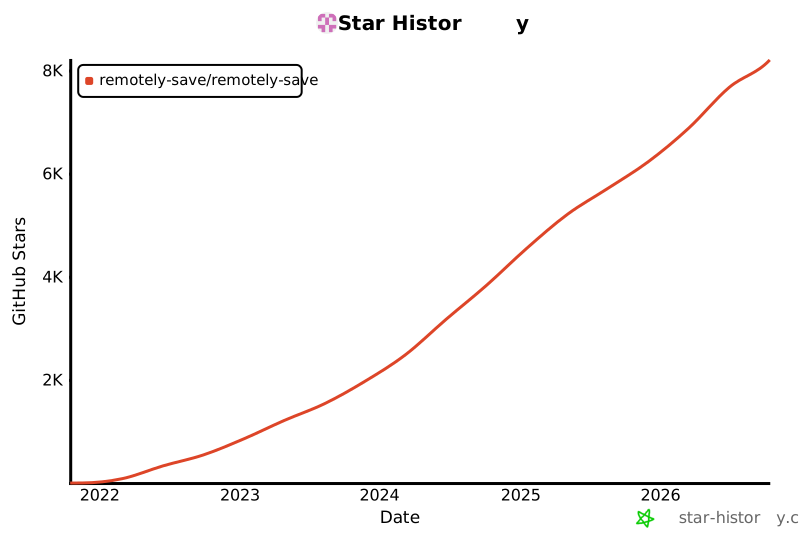](https://star-history.com/#remotely-save/remotely-save&Date)
|
||||
- [x] AWS S3
|
||||
- [ ] webdav
|
||||
|
||||
221
README.zh-cn.md
221
README.zh-cn.md
@ -1,221 +0,0 @@
|
||||
# Remotely Save
|
||||
|
||||
[English](./README.md) | 中文
|
||||
|
||||
这是Obsidian的一个非官方同步插件。如果你喜欢它或觉得它帮到了你,请考虑在Github上给它一颗[星星 ](https://github.com/fyears/remotely-save)。
|
||||
|
||||
[](https://github.com/fyears/remotely-save/actions/workflows/auto-build.yml)
|
||||
|
||||
[](https://github.com/fyears/remotely-save/releases)
|
||||
|
||||
## 免责声明
|
||||
|
||||
- **这不是 Obsidian 提供的[官方同步服务](https://obsidian.md/sync)。**
|
||||
|
||||
## !!!警告!!!
|
||||
|
||||
**在使用此插件之前,一定,一定要记得备份你的 vault。**
|
||||
|
||||
## 功能
|
||||
|
||||
- 支持:
|
||||
- Amazon S3 或兼容 S3 的服务(Cloudflare R2 / BackBlaze B2 / MinIO / ...)
|
||||
- Dropbox
|
||||
- 个人版本 OneDrive(应用文件夹)
|
||||
- 个人版本 OneDrive(根目录)(PRO 功能)
|
||||
- Webdav(NextCloud / InfiniCloud / Synology webdav 服务器 / ...)
|
||||
- Webdis
|
||||
- Google Drive(GDrive)(PRO 功能)
|
||||
- Box(PRO 功能)
|
||||
- pCloud(PRO 功能)
|
||||
- Yandex Disk(PRO 功能)
|
||||
- Koofr(PRO 功能)
|
||||
- Azure Blob Storage(PRO 功能)
|
||||
- [这里](./docs/services_connectable_or_not.md)详细展示了更多可连接(或不可连接)的服务。
|
||||
- **支持 Obsidian 移动版。** vault 可以通过云服务作为“中介”在移动和桌面设备之间同步。
|
||||
- **支持[端到端加密](./docs/encryption/README.md)。** 如果用户指定密码,文件在发送到云之前会使用 openssl / rclone crypt 格式加密。
|
||||
- **支持计划自动同步。** 你也可以使用侧边栏按钮,或者或命令面板中的命令,来手动触发同步(又或者绑定热键组合然后触发)。
|
||||
- **[最小侵入性](./docs/minimal_intrusive_design.md)。**
|
||||
- 通过自定义正则表达式条件**跳过大文件和路径!**
|
||||
- **[同步算法](./docs/sync_algorithm/v3/intro.md)文档公开。**
|
||||
- 免费版本支持 **[基本冲突检测和处理](./docs/sync_algorithm/v3/intro.md)**。PRO 版本支持 **[高级智能冲突处理](./pro/README.md)**。
|
||||
- 源代码可阅。详见[许可证](./LICENSE)。
|
||||
|
||||
## 限制
|
||||
|
||||
- **云服务会产生费用。** 始终记得注意成本和定价。具体来说,所有操作,包括但不限于下载、上传、列出所有文件、调用任何 api、存储大小,可能会或可能不会产生费用。
|
||||
- **来自浏览器环境的一些限制。** 更多技术细节在[文档](./docs/browser_env.md)中。
|
||||
- **记得保护你的 `data.json` 文件。** 该文件包含敏感信息。
|
||||
- 强烈建议**不要**与任何人共享你的 `data.json` 文件。
|
||||
- 通常**不要**将此文件检入版本控制。默认情况下,插件会尝试在插件目录中创建一个 `.gitignore` 文件(如果不存在),以忽略 `git` 版本控制中的 `data.json`。如果你确切知道这意味着什么并想移除设置,请修改 `.gitignore` 文件或将其设置为空。
|
||||
- **Obsidian 移动版 API 在同步大文件(>= 50 MB)时存在性能问题。**
|
||||
- 设置“跳过大文件”选项可以帮助解决同步大文件的问题。
|
||||
|
||||
## 问题、建议或错误
|
||||
|
||||
非常欢迎你提出问题、发布任何建议或报告任何错误!该项目主要在GitHub上维护:
|
||||
|
||||
- 问题:[GitHub 仓库讨论](https://github.com/remotely-save/remotely-save/discussions)
|
||||
- 建议:也在[GitHub 仓库讨论](https://github.com/remotely-save/remotely-save/discussions)
|
||||
- 错误:[GitHub 仓库 Issue](https://github.com/remotely-save/remotely-save/issues)(注意这里是 bug 反馈,不是讨论)
|
||||
|
||||
此外,插件作者可能会偶尔访问 Obsidian 官方论坛和官方 Discord 服务器,并关注与该插件相关的信息。
|
||||
|
||||
## 下载和安装
|
||||
|
||||
- 选项 #1:在官方“社区插件列表”中搜索,或访问此链接:[https://obsidian.md/plugins?id=remotely-save](https://obsidian.md/plugins?id=remotely-save)(应该会重定向到 Obsidian app),然后安装插件。
|
||||
- 选项 #2:你也可以使用 [Obsidian42 - BRAT](https://github.com/TfTHacker/obsidian42-brat) 来安装此插件。在 BRAT 的配置中输入 `remotely-save/remotely-save`。
|
||||
- 选项 #3:[](https://github.com/fyears/remotely-save/releases) 从最新发布中手动下载文件(`main.js`,`manifest.json`,`styles.css`)。
|
||||
- 选项 #4:[](https://github.com/fyears/remotely-save/actions/workflows/auto-build.yml) 每个成功的构建的“摘要”下都有构建文件。它是由每个提交自动生成的,可能不会正常工作。
|
||||
|
||||
## 使用方法
|
||||
|
||||
### S3
|
||||
|
||||
- 教程/示例:
|
||||
- [Cloudflare R2](./docs/remote_services/s3_cloudflare_r2/README.md)
|
||||
- [BackBlaze B2](./docs/remote_services/s3_backblaze_b2/README.md)
|
||||
- [Storj](./docs/remote_services/s3_storj_io/README.md)
|
||||
- [腾讯云 COS](./docs/remote_services/s3_tencent_cloud_cos/README.zh-cn.md) | [Tencent Cloud COS](./docs/remote_services/s3_tencent_cloud_cos/README.md)
|
||||
- [MinIO](./docs/remote_services/s3_minio/README.md)
|
||||
- [又拍云](./docs/remote_services/s3_upyun/README.zh-cn.md)
|
||||
- 准备你的 S3(兼容)服务信息:[端点,区域](https://docs.aws.amazon.com/general/latest/gr/s3.html),[访问密钥 ID ,密钥](https://docs.aws.amazon.com/sdk-for-javascript/v3/developer-guide/getting-your-credentials.html),存储桶名称。
|
||||
- 如果你使用 AWS S3,还要创建[策略和用户](./docs/remote_services/s3_general/s3_user_policy.md)。
|
||||
- 非常旧版本的 Obsidian 需要[配置 CORS](./docs/remote_services/s3_general/s3_cors_configure.md)。
|
||||
- 下载并启用此插件。
|
||||
- 在插件的设置中输入你的信息。
|
||||
- 如果你没有在设置中设置前缀,存储桶应该是空的,并且仅用于同步一个 vault。你可以在设置中设置前缀,以便同一个存储桶可以存储多个 vault。
|
||||
- 如果你想启用端到端加密,也要在设置中设置一个密码。如果你没有指定密码,文件和文件夹将以明文、原始内容同步到云。
|
||||
- **每次**你想在本地和远程之间同步你的 vault 的时候,点击侧边栏上的新“圆形箭头”图标。(或者,你可以在设置面板中配置自动同步(见下一章)。)在同步过程中,图标变成“两个半圆形箭头”。除了点击侧边栏上的图标,你还可以在命令面板中激活相应的命令。
|
||||
- **同步时要有耐心。** 尤其是在第一次同步时。
|
||||
- 如果你想在多个设备之间同步文件,**在使用默认设置时,你的 vault 名称应该相同**。
|
||||
|
||||
### Dropbox
|
||||
|
||||
- **此插件不是官方Dropbox产品。** 插件只是使用 Dropbox 的公共API。
|
||||
- 授权后,插件可以读取你的姓名和电子邮件(在 Dropbox api 上无法取消选择),并读取和写入你的 Dropbox 的 `/Apps/remotely-save` 文件夹中的文件。
|
||||
- 如果你决定授权此插件连接到 Dropbox,请访问插件的设置页,选择Dropbox 然后按照说明操作。[更多带截图的信息在这里](./docs/dropbox_review_material/README.md)。
|
||||
- 基于密码的端到端加密也是可以的。但请注意,**vault 名称本身未加密**。
|
||||
- 如果你想在多个设备之间同步文件,**在使用默认设置时,你的 vault 名称应该相同**。
|
||||
|
||||
### 个人 OneDrive(应用文件夹)
|
||||
|
||||
- **此插件不是官方 Microsoft / OneDrive 产品。** 插件只是使用 Microsoft 的 [OneDrive 公共 API](https://docs.microsoft.com/en-us/onedrive/developer/rest-api) 而已。
|
||||
- 此插件仅适用于“个人 OneDrive”,不适用于“OneDrive for Business。详见 [#11](https://github.com/fyears/remotely-save/issues/11)。
|
||||
- 授权后,插件可以读取你的姓名和电子邮件,并读取和写入你的OneDrive的 `/Apps/remotely-save` 文件夹中的文件。**Remotely Save 的免费版本仅连接到应用文件夹,而 PRO 版本可以连接到 Onedrive 的根文件夹。见下面的 PRO 部分。**
|
||||
- 如果你决定授权此插件连接到 OneDrive,请访问插件的设置页,选择OneDrive 然后按照说明操作。
|
||||
- 基于密码的端到端加密也是可以的。但请注意,**vault 名称本身未加密**。
|
||||
- 如果你想在多个设备之间同步文件,**在使用默认设置时,你的 vault 名称应该相同**。
|
||||
- 你可能还想查看 [OneDrive 的常见问题](./docs/remote_services/onedrive/README.md)。
|
||||
|
||||
### webdav
|
||||
|
||||
- 教程/示例:
|
||||
- [Nextcloud](./docs/remote_services/webdav_nextcloud/README.md)
|
||||
- [The Good Cloud](./docs/remote_services/webdav_thegoodcloud/README.md)
|
||||
- [ownCloud](./docs/remote_services/webdav_owncloud/README.md)
|
||||
- [InfiniCloud](./docs/remote_services/webdav_infinicloud_teracloud/README.md)
|
||||
- [Synology webdav 服务器](./docs/remote_services/webdav_synology_webdav_server/README.md) | [群晖 webdav 服务器](./docs/remote_services/webdav_synology_webdav_server/README.zh-cn.md)
|
||||
- [dufs](./docs/remote_services/webdav_dufs/README.md)
|
||||
- [AList(中文)](./docs/remote_services/webdav_alist/README.zh-cn.md) | [AList (English)](./docs/remote_services/webdav_alist/README.md)
|
||||
- [坚果云](./docs/remote_services/webdav_jianguoyun/README.zh-cn.md) | [JianGuoYun/NutStore](./docs/remote_services/webdav_jianguoyun/README.md)
|
||||
- [Open Media Vault](./docs/remote_services/webdav_openmediavault/README.md)
|
||||
- [Nginx (`ngx_http_dav_module`, `nginx-dav-ext-module`, with Docker)](./docs/remote_services/webdav_nginx/README.md)
|
||||
- [Apache (with Docker)](./docs/remote_services/webdav_apache/README.md)
|
||||
- [Caddy with `http.handlers.webdav` module](./docs/remote_services/webdav_caddy/README.md)
|
||||
- 非常旧版本的Obsidian需要[配置 CORS](./docs/remote_services/webdav_general/webav_cors.md)。
|
||||
- 你的数据会同步到你的webdav服务器上的 `${vaultName}` 子文件夹。
|
||||
- 基于密码的端到端加密也是可以的。但请注意,**vault 名称本身未加密**。
|
||||
- 如果你想在多个设备之间同步文件,**在使用默认设置时,你的 vault 名称应该相同**。
|
||||
|
||||
### Webdis
|
||||
|
||||
- 教程:
|
||||
- [Webdis](./docs/remote_services/webdis/README.md)
|
||||
- 实验性质。
|
||||
- 你必须自己设置和保护你的 web 服务器。
|
||||
|
||||
### Onedrive(完整访问)(PRO 功能)
|
||||
|
||||
PRO(付费)功能“与 Onedrive(完整)同步”允许用户与 Onedrive 根文件夹进行同步。教程和限制在[这里](./docs/remote_services/onedrivefull/README.md)。
|
||||
|
||||
### Google Drive(GDrive)(PRO 功能)
|
||||
|
||||
PRO(付费)功能“与 Google Drive 同步”允许用户与 Google Drive 进行同步。教程和限制在[这里](./docs/remote_services/googledrive/README.md)。
|
||||
|
||||
### Box(PRO 功能)
|
||||
|
||||
PRO(付费)功能“与 Box 同步”允许用户与 Box 同步。教程和限制在[这里](./docs/remote_services/box/README.md)。
|
||||
|
||||
### pCloud(PRO 功能)
|
||||
|
||||
PRO(付费)功能“与 pCloud 同步”允许用户与 pCloud 同步(使用其原生 API 而不是 webdav)。教程和限制在[这里](./docs/remote_services/pcloud/README.md)。
|
||||
|
||||
### Yandex Disk(PRO 功能)
|
||||
|
||||
PRO(付费)功能“与 Yandex Disk 同步”允许用户与 Yandex Disk 同步(使用其原生 API 而不是 webdav)。教程和限制在[这里](./docs/remote_services/yandexdisk/README.md)。
|
||||
|
||||
### Koofr(PRO 功能)
|
||||
|
||||
PRO(付费)功能“与 Koofr 同步”允许用户与 Koofr 同步(使用其原生 API 而不是 webdav)。教程和限制在[这里](./docs/remote_services/koofr/README.md)。
|
||||
|
||||
### Azure Blob Storage(PRO 功能)
|
||||
|
||||
PRO(付费)功能“与 Azure Blob Storage 同步”允许用户与 Azure Blob Storage 同步。教程和限制在[这里](./docs/remote_services/azureblobstorage/README.md)。
|
||||
|
||||
## 智能冲突(PRO功能)
|
||||
|
||||
基本(免费)版本可以检测冲突,但用户必须选择保留较新版本或较大版本的文件两种选项之一。
|
||||
|
||||
PRO(付费)功能“智能冲突”为用户提供了另一个选项:合并小的 markdown 文件,或复制大的 markdown 文件或任何大小的非 markdown 文件。
|
||||
|
||||
文档见[这里](./docs/pro/README.md)。
|
||||
|
||||
## 定时自动同步
|
||||
|
||||
- 你可以在设置中配置每 N 分钟自动同步。
|
||||
- 在自动同步模式下,如果发生任何错误,插件会**静默失败**。
|
||||
- 自动同步仅在 Obsidian 打开时有效。由于插件仅在 Obsidian 提供的浏览器环境中工作,因此**技术上不可能**在 Obsidian 后台自动同步。
|
||||
|
||||
## 保存时同步
|
||||
|
||||
- 你可以在设置中配置保存时同步。
|
||||
- 在保存时同步模式下,如果发生任何错误,插件会**静默失败**。
|
||||
|
||||
## 配置文件夹/文件和书签
|
||||
|
||||
默认情况下,插件不同步 obsidian 的配置文件夹/文件(通常是 `.obsidian` 文件夹),因为它是隐藏文件之一。
|
||||
|
||||
然而,在最新版本中,你可以在设置中启用同步配置文件夹。请注意,这是一个实验性功能。特别是一些配置文件的修改时间每次 Obsidian 打开时都会改变,这破坏了插件的假设,因此某些信息可能无法正确同步。
|
||||
|
||||
此外,Obsidian的书签实际上存储在 `.obsidian/bookmarks.json` 文件中的。你也可以在设置中设置同步这个文件(而不是整个配置文件夹)。插件将保持跨设备最新修改的文件。
|
||||
|
||||
## 隐藏文件或文件夹
|
||||
|
||||
**默认情况下,所有以 `.`(点)或 `_`(下划线)开头的文件或文件夹都被视为隐藏文件,不会被同步。** 如果你有一些文件只是本地保留,这很有用。但这种策略也意味着主题/其他插件/此插件的设置也不会被同步。
|
||||
|
||||
在最新版本中,你可以更改设置以允许同步 `_` 文件或文件夹,以及如上所述的 `.obsidian` 特殊配置文件夹(但不包括其他任何 `.` 文件或文件夹)。
|
||||
|
||||
## PRO(付费)功能
|
||||
|
||||
详见[PRO](./docs/pro/README.md)了解更多详情。
|
||||
|
||||
## 如何调试(debug)
|
||||
|
||||
如发生错误,查看[这里文档](./docs/how_to_debug/README.md)了解调试方式。
|
||||
|
||||
如果没有发生错误,但是运行起来很慢,你需要[开启“性能收集”](./docs/check_performance/README)来看看有没有哪一步特别慢。
|
||||
|
||||
## 额外功能:通过 QR 码导入和导出非 OAuth2 插件设置
|
||||
|
||||
详见[这里](./docs/import_export_some_settings.md)了解更多详情。
|
||||
|
||||
## 下载历史
|
||||
|
||||
下载历史可以从非官方的 [Obsidian Stats](https://www.moritzjung.dev/obsidian-stats/plugins/remotely-save/#downloads) 查阅。(和官方 Obsidian,GitHub,Remotely Save 均无利益关系。)
|
||||
|
||||
## 星星历史
|
||||
|
||||
(和官方 Obsidian,GitHub,Remotely Save 均无利益关系。)
|
||||
|
||||
[](https://star-history.com/#remotely-save/remotely-save&Date)
|
||||

@ -1,3 +0,0 @@
|
||||
version https://git-lfs.github.com/spec/v1
|
||||
oid sha256:a9bf1cc2403c3a32e7a6f5d5829bb065573922dc050ae2fdb8b3d34b4c87ecf5
|
||||
size 8296
|
||||

@ -1,3 +0,0 @@
|
||||
version https://git-lfs.github.com/spec/v1
|
||||
oid sha256:6990a598379c457442345e50c3f056c4598a121523bc10980835c08fc7447a54
|
||||
size 10119
|
||||

@ -1,3 +0,0 @@
|
||||
version https://git-lfs.github.com/spec/v1
|
||||
oid sha256:432198e63fa9676541a41436917e025d1ea6af3772139c1dea450fcc0155cfd0
|
||||
size 13054
|
||||

@ -1,3 +0,0 @@
|
||||
version https://git-lfs.github.com/spec/v1
|
||||
oid sha256:fe3b5b8bf9c32e57c0af366c455b11ae68eb9fb8a32f371c9c445b3e7e89cc02
|
||||
size 1120
|
||||

@ -1,3 +0,0 @@
|
||||
version https://git-lfs.github.com/spec/v1
|
||||
oid sha256:f68df7bae94eb4c4cddfa6af47d7819d01a6482d4f6afe6ef3236f72f9adf15f
|
||||
size 1523
|
||||
@ -1 +0,0 @@
|
||||
This work is licensed under CC BY-SA 4.0. To view a copy of this license, visit http://creativecommons.org/licenses/by-sa/4.0/
|
||||
@ -1,75 +0,0 @@
|
||||
# the logo
|
||||
|
||||
Some different sizes' logos are needed.
|
||||
|
||||
## license
|
||||
|
||||
<a rel="license" href="http://creativecommons.org/licenses/by-sa/4.0/"><img alt="Creative Commons License" style="border-width:0" src="https://i.creativecommons.org/l/by-sa/4.0/88x31.png" /></a><br />This work is licensed under a <a rel="license" href="http://creativecommons.org/licenses/by-sa/4.0/">Creative Commons Attribution-ShareAlike 4.0 International License</a>.
|
||||
|
||||
## the process of creation
|
||||
|
||||
No professional designers are here. Thus the following steps involve many programer styles. :-)
|
||||
|
||||
1. use excalidraw and export png and svg.
|
||||
|
||||
```bash
|
||||
# results
|
||||
logo.excalidraw
|
||||
logo.png
|
||||
logo.svg
|
||||
```
|
||||
|
||||
2. manually edit the `logo.svg` and make background transparent.
|
||||
|
||||
```bash
|
||||
# results
|
||||
logo-transparent.svg
|
||||
```
|
||||
|
||||
3. use python library [`svgutils`](https://github.com/btel/svg_utils) to make a strictly square figure. The [doc](https://svgutils.readthedocs.io/en/latest/tutorials/composing_multipanel_figures.html) is very useful.
|
||||
|
||||
```python
|
||||
from svgutils.compose import *
|
||||
def get_standard_300x300(file_name):
|
||||
fig = Figure(300, 300,
|
||||
Panel(
|
||||
SVG(file_name),
|
||||
).move(-3, 12),
|
||||
)
|
||||
return fig
|
||||
|
||||
get_standard_300x300('logo-transparent.svg').save('300x300.svg')
|
||||
|
||||
# def get_other_size_from_standard(file_name, px):
|
||||
# fig = Figure(px, px,
|
||||
# Panel(
|
||||
# SVG(file_name).scale(px/300.0),
|
||||
# ).move(-3*px/300.0, 12*px/300.0),
|
||||
# )
|
||||
# return fig
|
||||
|
||||
# get_other_size_from_standard('logo.svg',256).save('256x256.svg')
|
||||
```
|
||||
|
||||
```bash
|
||||
# results
|
||||
300x300.svg
|
||||
```
|
||||
|
||||
4. use `inkscape` command line to get different sizes' `.png` files.
|
||||
|
||||
```bash
|
||||
inkscape 300x300.svg -o 300x300.png
|
||||
|
||||
inkscape 300x300.svg -o 50x50.png -w 50 -h 50
|
||||
|
||||
inkscape 300x300.svg -o 64x64.png -w 64 -h 64
|
||||
inkscape 300x300.svg -o 256x256.png -w 256 -h 256
|
||||
```
|
||||
|
||||
```bash
|
||||
# results
|
||||
50x50.png
|
||||
64x64.png
|
||||
256x256.png
|
||||
```
|
||||

@ -1,3 +0,0 @@
|
||||
version https://git-lfs.github.com/spec/v1
|
||||
oid sha256:daedd262170200cb5e8cc288898b40892771b3962cf2bc17dc443f1c82a4aa94
|
||||
size 12886
|
||||
@ -1,3 +0,0 @@
|
||||
version https://git-lfs.github.com/spec/v1
|
||||
oid sha256:6b33b2a71f2d91988416c17015b59ef205dbf6a8c704ecac1cc95ed03ccc2c8e
|
||||
size 16537
|
||||

@ -1,3 +0,0 @@
|
||||
version https://git-lfs.github.com/spec/v1
|
||||
oid sha256:98358aa726dcb5565164ff260634f5c527223d1f2ec1d0410b400625c8dad704
|
||||
size 14082
|
||||

@ -1,3 +0,0 @@
|
||||
version https://git-lfs.github.com/spec/v1
|
||||
oid sha256:02a5057ebe38e4c3835c8354f53aca01c4c2335d8a0435e22f509b4ca4a73ca4
|
||||
size 12889
|
||||

@ -1,3 +0,0 @@
|
||||
version https://git-lfs.github.com/spec/v1
|
||||
oid sha256:07fd075d0f73c708d77fd97bb31d6f185f094031e8275e8fd582e3a0145f6be8
|
||||
size 415757
|
||||

@ -1,3 +0,0 @@
|
||||
version https://git-lfs.github.com/spec/v1
|
||||
oid sha256:4c5754df8b5d6878a7fa58992fc7e37ddcce1ecf578a0fc2ec751b6f7bab6f13
|
||||
size 284700
|
||||
55
biome.json
55
biome.json
@ -1,55 +0,0 @@
|
||||
{
|
||||
"$schema": "https://biomejs.dev/schemas/1.8.3/schema.json",
|
||||
"organizeImports": {
|
||||
"enabled": true
|
||||
},
|
||||
"files": {
|
||||
"ignore": ["main.js"]
|
||||
},
|
||||
"formatter": {
|
||||
"enabled": true,
|
||||
"formatWithErrors": false,
|
||||
"ignore": [],
|
||||
"attributePosition": "auto",
|
||||
"indentStyle": "space",
|
||||
"indentWidth": 2,
|
||||
"lineEnding": "lf",
|
||||
"lineWidth": 80
|
||||
},
|
||||
"javascript": {
|
||||
"formatter": {
|
||||
"arrowParentheses": "always",
|
||||
"bracketSameLine": false,
|
||||
"bracketSpacing": true,
|
||||
"jsxQuoteStyle": "double",
|
||||
"quoteProperties": "asNeeded",
|
||||
"semicolons": "always",
|
||||
"trailingCommas": "es5"
|
||||
}
|
||||
},
|
||||
"linter": {
|
||||
"enabled": true,
|
||||
"rules": {
|
||||
"recommended": true,
|
||||
"suspicious": {
|
||||
"noExplicitAny": "off",
|
||||
"noPrototypeBuiltins": "off",
|
||||
"noControlCharactersInRegex": "off"
|
||||
},
|
||||
"style": {
|
||||
"noUselessElse": "off",
|
||||
"useNodejsImportProtocol": "off",
|
||||
"noUnusedTemplateLiteral": "off",
|
||||
"useTemplate": "off",
|
||||
"noNonNullAssertion": "off"
|
||||
},
|
||||
"performance": {
|
||||
"noDelete": "off"
|
||||
},
|
||||
"complexity": {
|
||||
"noForEach": "off",
|
||||
"useLiteralKeys": "off"
|
||||
}
|
||||
}
|
||||
}
|
||||
}
|
||||
29
docs/algorithm.md
Normal file
29
docs/algorithm.md
Normal file
@ -0,0 +1,29 @@
|
||||
# Algorithm
|
||||
|
||||
## Sources
|
||||
|
||||
We have three record sources:
|
||||
|
||||
1. Local files
|
||||
2. Remote files
|
||||
3. Local "delete-or-rename" history.
|
||||
|
||||
Assuming all sources are reliable.
|
||||
|
||||
## Deal with them
|
||||
|
||||
We list all combinations mutually exclusive and collectively exhaustive.
|
||||
|
||||
| ID | Remote Files | Local files | Local delete rename history | Extra | Decision |
|
||||
| ---- | ------------ | ----------- | --------------------------- | ------------------------------------------------------------ | ------------------------------------------------------------ |
|
||||
| 1 | exist | exist | ignore | mtime_remote > mtime_local | download remote file, create local folder if not exists, clear local history if exists |
|
||||
| 2 | exist | exist | ignore | mtime_remote < mtime_local | upload local file, create remote folder if not exists, clear local history if exists |
|
||||
| 3 | exist | exist | ignore | mtime_remote === mtime_local && password === "" && size_remote === size_local | clear local history if exists (the file was synced and no changes after last sync) |
|
||||
| 4 | exist | exist | ignore | mtime_remote === mtime_local && password === "" && size_remote !== size_local | upload local file, clear local history if exists (we always prefer local to remote) |
|
||||
| 5 | exist | exist | ignore | mtime_remote === mtime_local && password !== "" | clear local history if exists (in encryption mode, file sizes are unequal. we can only rely on mtime(s)) |
|
||||
| 6 | exist | exist | ignore | If local is a folder. mtime_local === undefined | clear local history if exists. TODO: what if a folder and a previous file share the same name? |
|
||||
| 7 | exist | not exist | exist | mtime_remote >= delete_time_local | download remote file, create folder if not exists |
|
||||
| 8 | exist | not exist | exist | mtime_remote < delete_time_local | delete remote file, clear local history |
|
||||
| 9 | exist | not exist | not exist | | download remote file, create folder if not exists |
|
||||
| 10 | not exist | exist | ignore | local may be folder or file | upload local files recursively, create remote folder if not exists, clear local history if exists |
|
||||
| 11 | not exist | not exist | ignore | | clear local history if exists |
|
||||
@ -1,12 +0,0 @@
|
||||
# Limitations From The Browser Environment
|
||||
|
||||
Obsidian desktop is developed by using [Electron](https://www.electronjs.org/). And Obsidian mobile is developed by using [Capacitor](https://capacitorjs.com/)
|
||||
|
||||
Technically, the plugin (or any plugin?) runs in the js environment provided by Obsidian. And to support the mobile Obsidian, the plugin is limited to be developed for the browser environment, instead of the Node.js environment.
|
||||
|
||||
Then some limitations are applied:
|
||||
|
||||
1. [The CORS issue (solved in the new Obsidian version on some platforms).](./browser_env_cors.md)
|
||||
2. [No Node.js environment.](./browser_env_no_nodejs.md)
|
||||
3. If the cloud service uses OAuth flow, it needs to support PKCE. More details are [here](./browser_env_oauth2_pkce.md).
|
||||
4. [No background running after Obsidian is closes.](./browser_env_no_background_after_closing.md)
|
||||
@ -1,14 +0,0 @@
|
||||
# Limitations From The Browser Environment: CORS Issue
|
||||
|
||||
The plugin is developed for the browser environment. The "fake" browser behind the scenes also follows the CORS policy.
|
||||
|
||||
[MDN has a doc about CORS.](https://developer.mozilla.org/en-US/docs/Web/HTTP/CORS)
|
||||
|
||||
1. From Obsidian desktop >= 0.13.25 or mobile >= 1.1.1, Obsidian [provides a new API `requiestUrl`](https://forum.obsidian.md/t/obsidian-release-v0-13-25-insider-build/32701), that allows the plugin to fully bypass the CORS issue. As of Mar 2022, the latest public-released Obsidian desktop has supported this API, but the Obsidian mobile still stays in insider.
|
||||
|
||||
2. For using this plugin in Obsidian desktop < 0.13.25 or mobile < 1.1.1, we need to configure the server side to return the header `Access-Control-Allow-Origin` allowing the origins `app://obsidian.md` and `capacitor://localhost` and `http://localhost`.
|
||||
|
||||
Example configurations:
|
||||
|
||||
- [Amazon S3](./s3_cors_configure.md)
|
||||
- [Apache](./apache_cors_configure.md) ([contributed by community](https://github.com/remotely-save/remotely-save/pull/31))
|
||||
@ -1,3 +0,0 @@
|
||||
# Limitations From The Browser Environment: No Background Running After Obsidian Is Closed
|
||||
|
||||
The plugin treats Obsidian as a special browser, and is in fact some js codes. So if Obsidian is closed, then the browser environment stops, then the plugin will be stopped.
|
||||
@ -1,9 +0,0 @@
|
||||
# Limitations From The Browser Environment: No Node.js
|
||||
|
||||
To support the mobile Obsidian, the plugin is limited to be developed for the browser environment, instead of the Node.js environment.
|
||||
|
||||
Many js libraries are designed to work in both the browser and the Node.js environments. But some are not, because the browser doesn't provide the corresponding abilities.
|
||||
|
||||
For example, there is a popular npm package [`ssh2-sftp-client`](https://www.npmjs.com/package/ssh2-sftp-client) for SFTP. But it relies on the modules (e.g. `http`) from Node.js which cannot be "translated" to the browser environment. So it's impossible to make this plugin support SFTP. The same status applies to FTP / FTPS.
|
||||
|
||||
Likewise, [MEGA](https://mega.nz/) provides a SDK, but the SDK is [for C++ only](https://mega.nz/doc), so it's also impossible to make this plugin support MEGA.
|
||||
@ -1,7 +0,0 @@
|
||||
# Limitations From The Browser Environment: OAuth2 PKCE
|
||||
|
||||
If the cloud service uses OAuth flow, it needs to support PKCE, because the plugin is released to the public, and no real secrets can be statically kept in the client.
|
||||
|
||||
Luckily, Dropbox and OneDrive supports PKCE, making it possible for this plugin to connect to them easily.
|
||||
|
||||
Dropbox has an excellent [article](https://dropbox.tech/developers/pkce--what-and-why-) explaining what is and how to use PKCE.
|
||||
@ -1,13 +0,0 @@
|
||||
# Check performance
|
||||
|
||||
1. Go to settings, scroll to the very end, and enable the "Enable Profiler" option.
|
||||
2. Also enable "Enable Profiler Printing".
|
||||
3. Check Console Output (directly or via `vConsole` plugin). More details are [here](../how_to_debug/README.md).
|
||||
4. Sync!
|
||||
5. You can also "Export Profiler Results" afterwards. A new file `_debug_remotely_save/profiler_results_exported_on_xxxx.md` will be generated.
|
||||
|
||||
In the console or exported files, you can see the time cost of each steps.
|
||||
|
||||

|
||||
|
||||

|
||||

@ -1,3 +0,0 @@
|
||||
version https://git-lfs.github.com/spec/v1
|
||||
oid sha256:5a71d0746a75c93aa4cb5be3f7964bfdf74722a10505f5a1965790738eaebdc4
|
||||
size 265289
|
||||

@ -1,3 +0,0 @@
|
||||
version https://git-lfs.github.com/spec/v1
|
||||
oid sha256:4ffd1557c2f714c56bfacd8166b85749d6bfa15c2f9c7363942b443d51288083
|
||||
size 81259
|
||||
@ -1,47 +0,0 @@
|
||||
## Material Source
|
||||
|
||||
To apply for the production use of Dropbox API, some descriptions are needed to be submitted to Dropbox. Coincidently, this can also be served as a "readme" to use this plugin with Dropbox.
|
||||
|
||||
## Some Backgrounds
|
||||
|
||||
1. Obsidian allows users to take notes using markdown files.
|
||||
2. The "app", remotely-save. is an unofficial Obsidian plugin, helping users download and upload ("sync") their notes from and to Dropbox.
|
||||
3. Technically, remotely-save is developed using web technologies.
|
||||
|
||||
## Api Usages
|
||||
|
||||
1. remotely-save uses "App folder", to avoid unnecessary accessing users' other files.
|
||||
2. remotely-save uses "account_info.read", to get the displayed username, so that users know which of their accounts has been logged in after OAuth steps.
|
||||
3. remotely-save uses "files.content.read", so that it can read the "last modified time", and the content of files on Dropbox. Under some conditions, the plugin would download the files. For example, the plugin would compare the last modified timestamps of the file in the local device and that on Dropbox, and if the timestamp on Dropbox is larger, the plugin would download the "newer" file from Dropbox to local.
|
||||
4. remotely-save uses "files.content.write", so that it can upload or overwrite the content of files on Dropbox. Under some conditions, the plugin would do that. For example, the plugin would compare the last modified timestamps of the file in the local device and that on Dropbox, and if the timestamp in the local device is larger, the plugin would upload the "newer" file from local to Dropbox, and overwrite that file on Dropbox.
|
||||
|
||||
## Steps
|
||||
|
||||
Here are the steps to see the functionality of remotely-save.
|
||||
|
||||
Most steps have screenshots.
|
||||
|
||||
1. Download the note-taking app Obsidian (Windows or Mac versions are both ok) from its official website: https://obsidian.md/ . It's free to download and use. Then install it.
|
||||
2. Open Obsidian, click the "Create" button under "Create new vault".
|
||||
3. Pick a vault name, "example-vault", and choose a location, then click "Create".
|
||||

|
||||
4. Close any update new if prompted.
|
||||
5. Create a new note by clicking a button on the left. And write something on the note.
|
||||

|
||||
6. Click "setting" (a gear icon) on the button left of the sidebar.
|
||||

|
||||
7. In the settings panel, go to the "Community plugins" page, turn off the safe mode, and confirm to turn off the safe mode. Then click the "Browse" button for community plugins.
|
||||

|
||||
8. Search "Remotely Save" and install on the result.
|
||||

|
||||
9. After successful installing the plugin, go back to the "Community plugins" page, and enable the plugin.
|
||||

|
||||
10. Go to newly added "Remotely Save" settings, select "Dropbox" in "Choose service", and click the "Auth" button.
|
||||

|
||||
11. The standard auth flow address is shown, users should click the address, and finish the auth steps on the website. Finally, the Dropbox website should automatically redirect users back to the Obsidian app.
|
||||

|
||||
12. The "Auth" button disappears. A new "Revoke Auth" appears.
|
||||

|
||||
13. Go back to the main interface of Obsidian, a new "switch icon" should appear on the left sidebar. Click this, then the plugin would trigger the sync progress. It would compare meta info of local files and remote files (on Dropbox), and decide to download some files and/or upload some files.
|
||||

|
||||
14. Create, edit, remove some notes, and repeat step 13, the files on Dropbox should also change to reflect the changes locally.
|
||||

@ -1,3 +0,0 @@
|
||||
version https://git-lfs.github.com/spec/v1
|
||||
oid sha256:655f6f487cc24af0ab86b8592622a7701c30f3369e7847a1fbb783d0962829c3
|
||||
size 52910
|
||||

@ -1,3 +0,0 @@
|
||||
version https://git-lfs.github.com/spec/v1
|
||||
oid sha256:fe971af94f1f7b042b7313268e4d2d8432d926ce2392e50ca2a4abc21c8a4aab
|
||||
size 57033
|
||||

@ -1,3 +0,0 @@
|
||||
version https://git-lfs.github.com/spec/v1
|
||||
oid sha256:025303053f2b2cedd2bdd61cd71e1f1c0fb12e45bfbc0e81f2c0d70747133505
|
||||
size 63458
|
||||

@ -1,3 +0,0 @@
|
||||
version https://git-lfs.github.com/spec/v1
|
||||
oid sha256:061707977c8046a6f924881f86aac962e2f05618e201080768246270de792040
|
||||
size 100162
|
||||

@ -1,3 +0,0 @@
|
||||
version https://git-lfs.github.com/spec/v1
|
||||
oid sha256:8add61e6ef34b2470e5a5bea3e10955a86eed5ed1fc4dd398f30835485a6c455
|
||||
size 158422
|
||||

@ -1,3 +0,0 @@
|
||||
version https://git-lfs.github.com/spec/v1
|
||||
oid sha256:021ae1ce29d3932f088f0954787c475be826915b794320bf212d3ba7d58656da
|
||||
size 110529
|
||||

@ -1,3 +0,0 @@
|
||||
version https://git-lfs.github.com/spec/v1
|
||||
oid sha256:b225d21de5778ddc032893e0f52150ab4260b0dfbe0e9141da4aa8b03131a9da
|
||||
size 147821
|
||||

@ -1,3 +0,0 @@
|
||||
version https://git-lfs.github.com/spec/v1
|
||||
oid sha256:fda4f6e8cf68833f239bdc85c46802fe2131d149011074f747b1829822a38939
|
||||
size 59041
|
||||

@ -1,3 +0,0 @@
|
||||
version https://git-lfs.github.com/spec/v1
|
||||
oid sha256:576801d5ebd8cf7fcd3c9c0c6df325654338854f7d762a5680e9aab3c9e6508a
|
||||
size 142155
|
||||

@ -1,3 +0,0 @@
|
||||
version https://git-lfs.github.com/spec/v1
|
||||
oid sha256:1c93f681f0f7ce74cee0f2ed193f574ef915554f1a9ef96ba54afdede302f13a
|
||||
size 112057
|
||||
@ -1,8 +0,0 @@
|
||||
# Encryption
|
||||
|
||||
Currently (March 2024), Remotely Save supports two end to end encryption format:
|
||||
|
||||
1. [RClone Crypt](./rclone.md) format, which is the recommend way now.
|
||||
2. [OpenSSL enc](./openssl.md) format
|
||||
|
||||
Here is also the [comparation](./comparation.md).
|
||||
@ -1,23 +0,0 @@
|
||||
# Comparation Between Encryption Formats
|
||||
|
||||
## Warning
|
||||
|
||||
**ALWAYS BACKUP YOUR VAULT MANUALLY!!!**
|
||||
|
||||
If you switch between RClone Crypt format and OpenSSL enc format, you have to delete the cloud vault files **manually** and **fully**, so that the plugin can re-sync (i.e. re-upload) the newly encrypted versions to the cloud.
|
||||
|
||||
## The feature table
|
||||
|
||||
| | RClone Crypt | OpenSSL enc | comments |
|
||||
| ------------------------ | ------------------------------------------------------------------------------------------ | -------------------------------------------------------------- | ------------------------------------------------------------------------------------------------------------------------------------------------------------------- |
|
||||
| key generation | scrypt with fixed salt | PBKDF2 with dynamic salt | scrypt is better than PBKDF2 from the algorithm aspect. But RClone uses fixed salt by default. Also the parameters might affect the result. |
|
||||
| content encryption | XSalsa20Poly1305 on chunks | AES-256-CBC | XSalsa20Poly1305 is way better than AES-256-CBC. And encryption by chunks should require less resources. |
|
||||
| file name encryption | EME on each segment of the path | AES-256-CBC on the whole path | RClone has the benefit as well as pitfall that the path structure is preserved. Maybe it's more of a design decision difference? No comment on EME and AES-256-CBC. |
|
||||
| viewing decrypted result | RClone has command that can mount the encrypted vault as if the encryption is transparent. | No convenient way except writing some scripts we are aware of. | RClone is way more convenient. |
|
||||
|
||||
## Some notes
|
||||
|
||||
1. Anyway, security is a hard problem. The author of Remotely Save doesn't have sufficient knowledge to "judge" which one is the better format. **Use them at your own risk.**
|
||||
2. Currently the RClone Crypt format is recommended by default in Remotely Save. Just because of the taste from the Remotely Save author, who likes RClone.
|
||||
3. **Always use a long password.**
|
||||
4. Both algorithms are selected deliberately to **be compatible with some well-known third-party tools** (instead of some home-made methods) and **have many tests to ensure the correctness**.
|
||||
@ -1,46 +0,0 @@
|
||||
# OpenSSL enc format
|
||||
|
||||
If a password is set, the files are encrypted before being sent to the cloud.
|
||||
|
||||
## Warning
|
||||
|
||||
**ALWAYS BACKUP YOUR VAULT MANUALLY!!!**
|
||||
|
||||
If you switch between RClone Crypt format and OpenSSL enc format, you have to delete the cloud vault files **manually** and **fully**, so that the plugin can re-sync (i.e. re-upload) the newly encrypted versions to the cloud.
|
||||
|
||||
## Comparation between encryption formats
|
||||
|
||||
See the doc [Comparation](./comparation.md).
|
||||
|
||||
## Interoperability with official OpenSSL
|
||||
|
||||
This encryption algorithm is delibrately designed to be aligned with openssl format.
|
||||
|
||||
1. The encryption algorithm is implemented using web-crypto. Using AES-256-CBC.
|
||||
2. The file content is encrypted using openssl format. Assuming a file named `sometext.txt`, a password `somepassword`, then the encryption is equivalent to the following command:
|
||||
|
||||
```bash
|
||||
# file content encryption (ignoring file path encryption)
|
||||
openssl enc -p -aes-256-cbc -pbkdf2 -iter 20000 -pass pass:somepassword -in ./sometext.txt -out ./sometext.txt.enc
|
||||
|
||||
# file content decryption (ignoring file path decryption)
|
||||
openssl enc -d -p -aes-256-cbc -pbkdf2 -iter 20000 -pass pass:somepassword -in ./sometext.txt.enc -out ./sometext.txt
|
||||
```
|
||||
|
||||
3. The file/directory path strings, are encrypted using openssl in binary mode and then `base64url without padding` is applied.
|
||||
Assuming the file path is `a-folder-文件夹/a-file-文件.md`, then the following commands are equivilent:
|
||||
|
||||
```bash
|
||||
# prepare the functions
|
||||
# https://unix.stackexchange.com/questions/628842
|
||||
base64url::encode () { base64 -w0 | tr '+/' '-_' | tr -d '='; }
|
||||
base64url::decode () { awk '{ if (length($0) % 4 == 3) print $0"="; else if (length($0) % 4 == 2) print $0"=="; else print $0; }' | tr -- '-_' '+/' | base64 -d; }
|
||||
|
||||
# pure string encryption then base32
|
||||
echo -n 'a-folder-文件夹/a-file-文件.md' | openssl enc -aes-256-cbc -pbkdf2 -iter 20000 -pass pass:mylongpassword | base64url::encode
|
||||
|
||||
# pure string base64url then decryption
|
||||
echo -n 'U2FsdGVkX19tNkdFL5rZeHxbe7FL-Pp5mkZJkDNFJWFT6lldZlfa57j0C_cKn0I3PZ9YDvOkyoKqfF6lbn0_yg' | base64url::decode | openssl enc -d -aes-256-cbc -pbkdf2 -iter 20000 -pass pass:mylongpassword
|
||||
```
|
||||
|
||||
4. The directory is considered as special "0-byte" object on remote s3. So this meta infomation may be easily guessed if some third party can access the remote bucket.
|
||||
@ -1,46 +0,0 @@
|
||||
# RClone Crypt format
|
||||
|
||||
The encryption is compatible with RClone Crypt with **base64** name encryption format.
|
||||
|
||||
It's developed based on another js project by the same author of Remotely Save: [`@fyears/rclone-crypt`](https://github.com/fyears/rclone-crypt), which is NOT an official library from RClone, and is NOT affiliated with RClone.
|
||||
|
||||
Reasonable tests are also ported from official RClone code, to ensure the compatibility and correctness of the encryption.
|
||||
|
||||
## Warning
|
||||
|
||||
**ALWAYS BACKUP YOUR VAULT MANUALLY!!!**
|
||||
|
||||
If you switch between RClone Crypt format and OpenSSL enc format, you have to delete the cloud vault files **manually** and **fully**, so that the plugin can re-sync (i.e. re-upload) the newly encrypted versions to the cloud.
|
||||
|
||||
## Comparation between encryption formats
|
||||
|
||||
See the doc [Comparation](./comparation.md).
|
||||
|
||||
## Interoperability with official RClone
|
||||
|
||||
Please pay attention that the plugin uses **base64** of encrypted file names, while official RClone by default uses **base32** file names. The intention is purely for potentially support longer file names.
|
||||
|
||||
You could set up the RClone profile by calling `rclone config`. You need to create two profiles, one for your original connection and the other for RClone Crypt.
|
||||
|
||||
Finally, a working config file should like this:
|
||||
|
||||
```ini
|
||||
[webdav1]
|
||||
type = webdav
|
||||
url = https://example.com/sharefolder1/subfolder1 # the same as the web address in Remotely Save settings.
|
||||
vendor = other
|
||||
user = <some webdav username>
|
||||
pass = <some webdav password, obfuscated>
|
||||
|
||||
[webdav1crypt]
|
||||
type = crypt
|
||||
remote = nas1test:vaultname # the same as your "Remote Base Directory" (usually the vault name) in Remotely Save settings
|
||||
password = <some encryption password, obfuscated>
|
||||
filename_encoding = base64 # don't forget this!!!
|
||||
```
|
||||
|
||||
You can use the `mount` command to view and see the files in file explorer! On Windows, the command should like this (the remote vault is mounted to drive `X:`):
|
||||
|
||||
```bash
|
||||
rclone mount webdav1crypt: X: --network-mode --vfs-cache-mode writes
|
||||
```
|
||||
@ -1,25 +0,0 @@
|
||||
# How To Debug
|
||||
|
||||
Ideally, users do not need to debug anything. But if something bad happened, we have to dig into details.
|
||||
|
||||
## Easy: Export Sync Plans
|
||||
|
||||
See [here](./export_sync_plans.md).
|
||||
|
||||
## Medium: Desktop: Check Console Output Directly
|
||||
|
||||
...of desktop and Android.
|
||||
|
||||
See [here](./check_console_output.md).
|
||||
|
||||
## Medium: Mobile: Use `Obsidian vConsole` to Check Console Ouput Directly
|
||||
|
||||
...of mobile (iOS and Android).
|
||||
|
||||
See [here](./check_vconsole_output.md).
|
||||
|
||||
## Advanced: Use `Logstravaganza` to export logs
|
||||
|
||||
This method works for desktop and mobile devices (iOS, Android), especially useful for iOS.
|
||||
|
||||
See [here](./use_logstravaganza.md).
|
||||
@ -1,25 +0,0 @@
|
||||
# Check Console Output
|
||||
|
||||
If you are using Obsidian on desktop or Android, you can check the Obsidian console.
|
||||
|
||||
## Disable Auto Sync Firstly
|
||||
|
||||
You should disable auto sync to avoid any unexpected running.
|
||||
|
||||
## Set The Output Level To Debug
|
||||
|
||||
Go to the plugin settings, scroll down to the section "Debug" -> "alter console log level", and change it from "info" to "debug".
|
||||
|
||||
## Check The Output
|
||||
|
||||
- If you are on desktop
|
||||
|
||||
Press the keyboard shortcut "ctrl+shift+i" if you are on Windows or Linux, or press "cmd+shift+i" if you are on macOS. You should be able to see the console of Obsidian.
|
||||
|
||||
- If you are using Android
|
||||
|
||||
If you want to check the console **with the help of desktop Chrome**, you need to [enable USB debugging](https://developer.android.com/studio/debug/dev-options#enable) on your Android, then connect your Android to a computer using USB, then open the **desktop** Chrome browser and go to the special web page <chrome://inspect>. You shall be able to see the "inspect" link inside the special page, then click the link to open the console. After debugging, remember to turn off USB debugging.
|
||||
|
||||
If you want to check the console **directly on the mobile device**, check out [this doc](./check_vconsole_output.md).
|
||||
|
||||
Trigger the sync manually (by clicking the icon on the ribbon sidebar). Something (hopefully) helpful should show up in the console. You could understand what happened and what goes wrong more explictly by checking the output.
|
||||
@ -1,21 +0,0 @@
|
||||
# Check "Obsidian vConsole" Output
|
||||
|
||||
It's quite hard to debug on mobile. But fortunately you can use another plugin to rescue!
|
||||
|
||||
This applies to both iOS (iPhone / iPad) and Android.
|
||||
|
||||
## Disable Auto Sync Firstly
|
||||
|
||||
You should disable auto sync to avoid any unexpected running.
|
||||
|
||||
## Set The Output Level To Debug
|
||||
|
||||
Go to the plugin settings, scroll down to the section "Debug" -> "alter console log level", and change it from "info" to "debug".
|
||||
|
||||
## Use "Obsidian vConsole"
|
||||
|
||||
1. Install the third-party plugin ["Obsidian vConsole"](https://github.com/zhouhua/obsidian-vconsole).
|
||||
2. Enable "Obsidian vConsole". You shall see a green button in the right buttom corner of the interface of your mobile Obsidian. You can drag this green button to where you like.
|
||||
3. Sync! And quickly click the vConsole green button, you will see the console logs in its panel! Moreover, you can check browser network and Storage (LocalStorage) in the panel!
|
||||
4. You can copy (by clicking the small "disk" icon beside each line of the log) or take a screenshot of the logs, and report bugs in Remotely Save GitHub. You can click "Hide" in the panel to hide the panel.
|
||||
5. If you don't need to debug any more, you can disable Obsidian vConsole plugin, then the green button should disappear.
|
||||
@ -1,95 +0,0 @@
|
||||
# Export Sync Plans
|
||||
|
||||
## What's this?
|
||||
|
||||
Everytime the plugin starts a sync, it gathers all required information together, generates a "sync plan" of every operations to every files and folders, and assign the corresponding actual operations.
|
||||
|
||||
Thus, if something goes wrong, we should check the sync plan firstly.
|
||||
|
||||
## How To Export The Plans?
|
||||
|
||||
Please read through the following instructions.
|
||||
|
||||
### Disable Auto Sync Firstly
|
||||
|
||||
You should disable auto sync to avoid any unexpected running.
|
||||
|
||||
### Manual Sync If Not Yet
|
||||
|
||||
You should at least sync once, so that at least one sync plan is generated and saved. If you have synced the vualt before, there should be some sync plans already saved.
|
||||
|
||||
### Export To The File
|
||||
|
||||
Go to the plugin settings, scroll down to the section "Debug" -> "export sync plans", and click the button "Export". \*\*It would generate a new folder `_debug_remotely_save/` in your vault, and generate a file `sync_plans_hist_exported_on_{a_timestamp},md.` inside that folder.
|
||||
|
||||
## How To Read The Plans
|
||||
|
||||
Open the genrated `sync_plans_hist_exported_on_{a_timestamp},md.`. You should see a json, or multiple jsons. Every json represents a sync plan.
|
||||
|
||||
A sync plan looks like this:
|
||||
|
||||
```json
|
||||
{
|
||||
"ts": 1646960867560,
|
||||
"remoteType": "onedrive",
|
||||
"mixedStates": {
|
||||
"abc.md": {
|
||||
"key": "abc.md",
|
||||
"existRemote": true,
|
||||
"mtimeRemote": 1646566632000,
|
||||
"sizeRemote": 56797,
|
||||
"remoteEncryptedKey": "abc.md",
|
||||
"changeMtimeUsingMapping": true,
|
||||
"existLocal": true,
|
||||
"mtimeLocal": 1646566632000,
|
||||
"sizeLocal": 56797,
|
||||
"decision": "skipUploading",
|
||||
"decisionBranch": 1
|
||||
},
|
||||
"New folder/": {
|
||||
"key": "New folder/",
|
||||
"deltimeRemote": 1646925354372,
|
||||
"existLocal": false,
|
||||
"existRemote": false,
|
||||
"decision": "keepRemoteDelHistFolder",
|
||||
"decisionBranch": 9
|
||||
}
|
||||
}
|
||||
}
|
||||
```
|
||||
|
||||
We usually care about the `mixedStates` property. As you may guess, every item in `mixedStates` represent a file or a folder.
|
||||
|
||||
We should find out the file/folder we are interested in (or we believe something goes wrong), then checkout the following properties:
|
||||
|
||||
```
|
||||
decision
|
||||
What decision is made.
|
||||
|
||||
decisionBranch
|
||||
It's a mark of the actual logic in the sync code. Useful to debug.
|
||||
|
||||
existRemote
|
||||
Does the file/folder exist on the remote service?
|
||||
|
||||
mtimeRemote
|
||||
The "last modeified time" on the remote service.
|
||||
|
||||
deltimeRemote
|
||||
The "deletion time" on the remote record.
|
||||
|
||||
existLocal
|
||||
Does the file/folder exist locally?
|
||||
|
||||
mtimeLocal
|
||||
The max of "last modeified time" and "creation time" locally.
|
||||
|
||||
deltimeLocal
|
||||
The "deletion time" locally.
|
||||
```
|
||||
|
||||
The `decision` SHOULD be determined by the modified times and deletion times, by the logic described in [the doc of sync alogorithm](../sync_algorithm_v2.md). In short, we collect four timestamps (`mtimeRemote`, `deltimeRemote`, `mtimeLocal`, `deltimeLocal`), and respect the max timestamp and its corresponding operation.
|
||||
|
||||
## Common Issues
|
||||
|
||||
Some users report that their "last modeified time"s or "creation time"s are not set correctly by the operating system. In this case, the plugin cannot do anything because it determines the sync plan by comparing the timestamps. It's suggested to check the settings of the operating system or check whether other programs are doing something to the files.
|
||||
@ -1,14 +0,0 @@
|
||||
# Use `Logstravaganza`
|
||||
|
||||
On iOS, it's quite hard to directly check the console logs.
|
||||
|
||||
Luckily, there is a third-party plugin: [`Logstravaganza`](https://obsidian.md/plugins?search=Logstravaganza#), by Carlo Zottmann, that can redirect the output to a note.
|
||||
|
||||
You can just:
|
||||
|
||||
1. Install it.
|
||||
2. Enable it.
|
||||
3. Do something, to trigger some console logs.
|
||||
4. Checkout `LOGGING-NOTE (device name).md` in the root of your vault.
|
||||
|
||||
See more on its site: <https://github.com/czottmann/obsidian-logstravaganza>.
|
||||
@ -1,19 +0,0 @@
|
||||
## Bonus: Import And Export Not-Oauth2 Plugin Settings By QR Code
|
||||
|
||||
It's often verbose / inconvenient to input not-oauth2 credentials on mobile. (On different desktop computers, it's trivial to copy and paste `data.json` across different devices.)
|
||||
|
||||
So this plugin has a helper function to export those settings as a QR code, then you could use mobile device's camera to import the settings.
|
||||
|
||||
Attention:
|
||||
|
||||
1. Oauth2 - related information is omitted. It means that Dropbox, OneDrive login credentials are NOT included in the QR Code.
|
||||
2. Please, NEVER share the QR Code to others. It's as equivalent to the login credentials.
|
||||
|
||||
Steps:
|
||||
|
||||
1. Configure the plugin settings on one device, and make sure the sync functions work. (E.g, you could sync notes using S3 credentials.)
|
||||
2. Open plugin settings page. Then scroll down the page, until the section "Import and Export Settings". Click the button "Get QR Code". A new modal should show up and you should see a QR code.
|
||||
3. On a second device, make sure the vault name is the same as the first device's.
|
||||
4. On that second device, use its camera app, or any apps that support scanning QR codes, to scan the QR code from the first device. (On latest iOS, the system's built in camera app should work. On Android, at least one open source app [Binary Eye](https://github.com/markusfisch/BinaryEye) is tested to be working.)
|
||||
5. A link / url / address should be identified in the scan-QR-code app, and you could follow the instruction in the app, and then you should be redirected to open the Obsidian app.
|
||||
6. And finally, there should be a new notice in the Obsidian app saying the settings are successfully imported. Otherwise please check the error message in the notice.
|
||||
@ -1,56 +0,0 @@
|
||||
# How to receive `obsidian://` in Linux
|
||||
|
||||
## Background
|
||||
|
||||
For example, when we are authorizing OneDrive, we have to jump back to Obsidian automatically using `obsidian://`.
|
||||
|
||||
## Short Desc From Official Obsidian Doc
|
||||
|
||||
Official doc has some explanation:
|
||||
|
||||
<https://help.obsidian.md/Extending+Obsidian/Obsidian+URI#Register+Obsidian+URI>
|
||||
|
||||
# Long Desc
|
||||
|
||||
Assuming the username is `somebody`, and the `.AppImage` file is downloaded to `~/Desktop`.
|
||||
|
||||
1. Download and **extract** the app image file in terminal
|
||||
|
||||
```bash
|
||||
cd /home/somebody/Desktop
|
||||
chmod +x Obsidian-x.y.z.AppImage
|
||||
./Obsidian-x.y.z.AppImage --appimage-extract
|
||||
|
||||
# you should have the folder squashfs-root
|
||||
# we want to rename it
|
||||
mv squashfs-root Obsidian
|
||||
```
|
||||
|
||||
2. Create a `.desktop` file
|
||||
|
||||
```bash
|
||||
# copy and paste the follow MULTI LINE command
|
||||
# you might need to input your password because it requires root privilege
|
||||
# remember to adjust the path
|
||||
cat > ~/Desktop/obsidian.desktop <<EOF
|
||||
[Desktop Entry]
|
||||
Name=Obsidian
|
||||
Comment=obsidian
|
||||
Exec=/home/somebody/Desktop/Obsidian/obsidian %u
|
||||
Keywords=obsidian
|
||||
StartupNotify=true
|
||||
Terminal=false
|
||||
Type=Application
|
||||
Icon=/home/somebody/Desktop/Obsidian/obsidian.png
|
||||
MimeType=x-scheme-handler/obsidian;
|
||||
EOF
|
||||
|
||||
# yeah we can check out the output
|
||||
cat ~/Desktop/obsidian.desktop
|
||||
## [Desktop Entry]
|
||||
## ...
|
||||
```
|
||||
|
||||
3. Right click the `obsidian.desktop` file on the Desktop, and click "Allow launching"
|
||||
|
||||
4. Double click the `obsidian.desktop` file.
|
||||
@ -1,27 +0,0 @@
|
||||
# Minimal Intrusive Design
|
||||
|
||||
~~Before version 0.3.0, the plugin did not upload additional meta data to the remote.~~
|
||||
|
||||
~~From version 0.3.0 ~ 0.3.40, the plugin just upload minimal extra necessary meta data to the remote.~~
|
||||
|
||||
From version 0.4.1 and above, the plugin doesn't need uploading meta data due to the sync algorithm upgrade.
|
||||
|
||||
## Benefits
|
||||
|
||||
Then the plugin doesn't make more-than-necessary assumptions about information on the remote endpoint.
|
||||
|
||||
For example, it's possbile for a uses to manually upload a file to s3, and next time the plugin can download that file to the local device.
|
||||
|
||||
And it's also possible to combine another "sync-to-s3" solution (like, another software) on desktops, and this plugin on mobile devices, together.
|
||||
|
||||
## ~~Necessarity Of Uploading Extra Metadata from 0.3.0 ~ 0.3.40~~
|
||||
|
||||
~~The main issue comes from deletions (and renamings which is actually interpreted as "deletion-then-creation").~~
|
||||
|
||||
~~If we don't upload any extra info to the remote, there's usually no way for the second device to know what files / folders have been deleted on the first device.~~
|
||||
|
||||
~~To overcome this issue, from and after version 0.3.0, the plugin uploads extra metadata files `_remotely-save-metadata-on-remote.{json,bin}` to users' configured cloud services. Those files contain some info about what has been deleted on the first device, so that the second device can read the list to apply the deletions to itself. Some other necessary meta info would also be written into the extra files.~~
|
||||
|
||||
## No uploading extra metadata from 0.4.1
|
||||
|
||||
Some information, including previous successful sync status of each file, is kept locally.
|
||||
@ -1,53 +0,0 @@
|
||||
# PRO Features
|
||||
|
||||
From version 0.5.x, Remotely Save introduces PRO (paid) features. Users need to subscribe to (pay) them to use them.
|
||||
|
||||
**If you are using basic features only, you don't need an online account, and you don't need to pay for the plugin.**
|
||||
|
||||
# Links
|
||||
|
||||
* Remotely Save official website: <https://remotelysave.com>
|
||||
* Sign up / Sign in: <https://remotelysave.com/user/signupin>
|
||||
* User profile: <https://remotelysave.com/user/profile>
|
||||
|
||||
# Disclaimer
|
||||
|
||||
It's different from, and NOT affiliated with Obsidian account.
|
||||
|
||||
# Steps
|
||||
|
||||
## Steps of signing up and signing in
|
||||
|
||||
1. Go to the website, sign up and sign in. You can directly visit <https://remotelysave.com/user/signupin> or click the link in Remotely Save plugin setting page.
|
||||

|
||||
2. Use an email and your password as usual. Don't need to be GMail account.
|
||||
|
||||
## Steps of connecting
|
||||
|
||||
You need to connect your plugin to your online account. In Obsidian, in your Remotely Save plugin setting, you can click the button "Connect" to start the flow.
|
||||
|
||||
1. You will see a special address on website. Click it and visit the website
|
||||
2. Click "allow" on the website.
|
||||
3. In the end of the auth flow on the website, you will be shown up a code, please copy it...
|
||||
4. And paste the code back to the plugin modal inside Obsidian, and confirm.
|
||||
|
||||

|
||||
|
||||
## Steps of subscribing to some features.
|
||||
|
||||
1. Firstly please visit your [profile page](https://remotelysave.com/user/profile) online.
|
||||
2. You can subscribe to some features. Prices vary.
|
||||

|
||||
3. Go back to your Remotely Save plugin inside Obsidian, click "Check again" button in PRO settings. So that the plugin knows some features are enabled.
|
||||

|
||||
4. Sync and enjoy your PRO features!
|
||||
|
||||
## Why so complicated?
|
||||
|
||||
Because we don't have a payment method inside the plugin, so we have to:
|
||||
|
||||
* build a website,
|
||||
* require users having online accounts
|
||||
* and connect the plugin to the online account.
|
||||
|
||||
Moreover, an online account allows flexible management of subscriptions.
|
||||

@ -1,3 +0,0 @@
|
||||
version https://git-lfs.github.com/spec/v1
|
||||
oid sha256:8c73da29a621d225387640b76ec0dcfb56b3ffad151dab374d3b7cc76067a1a0
|
||||
size 94377
|
||||

@ -1,3 +0,0 @@
|
||||
version https://git-lfs.github.com/spec/v1
|
||||
oid sha256:116c2a8ec1a277a3985f4056b390574fc57145ec5635d44accf2a7445666264a
|
||||
size 626668
|
||||

@ -1,3 +0,0 @@
|
||||
version https://git-lfs.github.com/spec/v1
|
||||
oid sha256:4c45c08e6fc487341032aac511c332e3f9978a44e9b93377a73648b56b684b62
|
||||
size 155427
|
||||

@ -1,3 +0,0 @@
|
||||
version https://git-lfs.github.com/spec/v1
|
||||
oid sha256:08d128125dba033f5dd18a6ea8d942b284ddca6c5c3b0362c47dcb4a7153a8f9
|
||||
size 395800
|
||||
@ -1,107 +0,0 @@
|
||||
# Azure Blob Storage (GDrive) (PRO)
|
||||
|
||||
# Intro
|
||||
|
||||
* It's a PRO feature of Remotely Save plugin.
|
||||
* **This plugin is NOT an official Microsoft / Azure product, and just uses Azure Blob Storage's public api.**
|
||||
|
||||
# Disclaimer
|
||||
|
||||
I (author of Remotely Save) is **NOT** an expert of Azure products. The tutorials here are for references only. Azure products are very complex.
|
||||
|
||||
***As far as the law allows, the software (Remotely Save) comes as is, without any warranty or condition, and the licensor will not be liable to you for any damages arising out of these terms or the use or nature of the software, under any kind of legal claim.***
|
||||
|
||||
# Steps
|
||||
|
||||
Please read through the following steps before you actually connect.
|
||||
|
||||
## Preparation In Azure Blob Storage Side
|
||||
|
||||
You only need to do this **once**, before the Container SAS Url expires in the future.
|
||||
|
||||
In short, you need to: configure CORS and configure a policy and cobtain a Container SAS Url.
|
||||
|
||||
1. Connect to the service:
|
||||
|
||||
Download Microsoft's free [Azure Storage Explorer](https://azure.microsoft.com/en-us/products/storage/storage-explorer). The following tutorial uses this app. Actually you may be able to find the same settings on Azure official website.
|
||||
|
||||
Use this app to connect to your Blob Storage service or account.
|
||||
|
||||
2. CORS:
|
||||
|
||||
Right click on `Blob containers`, click "configure CORS". Add a rule, enter the following and save:
|
||||
```
|
||||
Allowed Origins: *
|
||||
Allowed Methods: DELETE,GET,HEAD,MERGE,POST,PATCH,OPTIONS,PUT
|
||||
Allowed Headers: x-ms-*, content-type
|
||||
Exposed Headers: x-ms-*, content-type
|
||||
Max Age (in seconds): 5
|
||||
```
|
||||
|
||||

|
||||
|
||||
3. Create the container:
|
||||
|
||||
Create the container if you don't have one. In this tutorial, we use `example-container`.
|
||||
|
||||

|
||||
|
||||
4. Generate a policy:
|
||||
|
||||
* Right click on you container, click "Manage Stored Access Policies".
|
||||
* Choose your id, for example `example-container-0000001`.
|
||||
* Change to Expiry time to an appropriate date. **By default it is only valid for a week.** After its expiration, you need come back and adjust the expiry date again! In this tutorial, we set it to a year.
|
||||
* And allow these methods: Read, Add, Create, Write, Delete, List.
|
||||
* Save
|
||||
|
||||
Read Microsoft's official [doc](https://learn.microsoft.com/en-us/rest/api/storageservices/define-stored-access-policy) for more info. The main benefit of generating an access policy is easier revocation of SAS Url if anything goes bad.
|
||||
|
||||

|
||||

|
||||
|
||||
5. Generate a Container SAS Url:
|
||||
|
||||
Then we want to create a container level SAS (shared access signature) url.
|
||||
|
||||
* Right click on you container, click "Get Shared Access Signature".
|
||||
* In access policy, choose the previous one you created: for example `example-container-0000001`.
|
||||
* Save the setting
|
||||
* You will see a url is generated, which starts with `https://` or `http://`. It should looks like `https://<account>.blob.core.windows.net/<container name>?sv=...&sig=...`
|
||||
* Save the Container SAS Url somewhere, and you will need this later.
|
||||
|
||||
Read Microsoft's official [doc](https://learn.microsoft.com/en-us/azure/storage/common/storage-sas-overview) for more info.
|
||||
|
||||

|
||||

|
||||
|
||||
### Why so complicated in Azure settings?
|
||||
|
||||
Because Azure Blob Storage's api has some limitation in browser environment, so we need to configure CORS and SAS. Because we want to revoke the SAS when needed, we need to use a policy.
|
||||
|
||||
### Revocation
|
||||
|
||||
If you suspect someone read the resource unexpectedly, you can revoke the SAS by changing the name or expiry date of the policy. And generate the SAS Url again.
|
||||
|
||||
## Steps of Remotely Save subscription
|
||||
|
||||
1. Please sign up and sign in an online account, connect your plugin to your online account firstly. See [the PRO tutorial](../../pro/README.md) firstly.
|
||||
2. Subscribe to "sync with Azure Blob Storage" feature online.
|
||||
3. Go back to your Remotely Save plugin inside Obsidian, click "Check again" button in PRO settings. So that the plugin knows some features are enabled. In this case, sync with Azure Blob Storage should be detected.
|
||||
|
||||
## Steps of Connecting to your Azure Blob Storage
|
||||
|
||||
After you enabled the PRO feature in your Remotely Save plugin, **and prepared the Container SAS Url**, you can connect to your Azure Blob Storage account now.
|
||||
|
||||
1. In Remotely Save settings, change your sync service to Azure Blob Storage.
|
||||
2. Input your Container SAS Url
|
||||
3. Input your container name.
|
||||
4. By default, the plugin will save your vault remotely with a prefix `<your vault name>/`. You can change the prefix. No prefix is not allowed.
|
||||
5. Check the connection. A notice will tell you that you've connected or not.
|
||||
7. Sync! The plugin will upload the fils and "folders" of your vault into your Azure Blob Storage with the preix.
|
||||
8. **Read the caveats below.**
|
||||
|
||||

|
||||
|
||||
# The caveats
|
||||
|
||||
* As of June 2024, this feature is in alpha stage. **Back up your vault before using this feature.**
|
||||

@ -1,3 +0,0 @@
|
||||
version https://git-lfs.github.com/spec/v1
|
||||
oid sha256:83caba9a42772f995035e3c879c6119eabcd6d3c27298cf0fb067b3676680571
|
||||
size 107057
|
||||

@ -1,3 +0,0 @@
|
||||
version https://git-lfs.github.com/spec/v1
|
||||
oid sha256:ef2d525d3ac7ecca26f7f8b6782fb1056d54f8c558a8d77586571defb7e6b5be
|
||||
size 41282
|
||||

@ -1,3 +0,0 @@
|
||||
version https://git-lfs.github.com/spec/v1
|
||||
oid sha256:cba5bf27e76eaf8ea21e51e43172501fc4867539c90c1758a02945477dc261ea
|
||||
size 132487
|
||||

@ -1,3 +0,0 @@
|
||||
version https://git-lfs.github.com/spec/v1
|
||||
oid sha256:0b2add8a559eab0b7073f7ed52d4a3e4efae68b499c7b924d1ac50278758961b
|
||||
size 193894
|
||||

@ -1,3 +0,0 @@
|
||||
version https://git-lfs.github.com/spec/v1
|
||||
oid sha256:582a69a7aee2cfab72dc14324e4a864acab92c145d533e799f8ceea61a8f0102
|
||||
size 478941
|
||||

@ -1,3 +0,0 @@
|
||||
version https://git-lfs.github.com/spec/v1
|
||||
oid sha256:cbb8863d98d8826739b5bf9fa4c7a2de3ba49fde4bbe3c4988a877ba74f89abd
|
||||
size 143007
|
||||

@ -1,3 +0,0 @@
|
||||
version https://git-lfs.github.com/spec/v1
|
||||
oid sha256:ddc30f97d75d7c3a6061cbb30cc991cbdf1f4039aad3547ef88998c3dd9be666
|
||||
size 132904
|
||||
@ -1,34 +0,0 @@
|
||||
# Box (PRO)
|
||||
|
||||
# Links
|
||||
|
||||
<https://www.box.com/>
|
||||
|
||||
# Intro
|
||||
|
||||
* It's a PRO feature of Remotely Save plugin.
|
||||
* **This plugin is NOT an official Box product, and just uses Box's public api.**
|
||||
|
||||
# Steps
|
||||
|
||||
## Steps of Remotely Save subscription
|
||||
|
||||
1. Please sign up and sign in an online account, connect your plugin to your online account firstly. See [the PRO tutorial](../../pro/README.md) firstly.
|
||||
2. Subscribe to "sync with Box" feature online.
|
||||
3. Go back to your Remotely Save plugin inside Obsidian, click "Check again" button in PRO settings. So that the plugin knows some features are enabled. In this case, sync with Box should be detected.
|
||||
|
||||
## Steps of Connecting to your Box
|
||||
|
||||
After you enabled the PRO feature in your Remotely Save plugin, you can connect to your Box account now.
|
||||
|
||||
1. In Remotely Save settings, change your sync service to Box.
|
||||
2. Click Auth, visit the link, go to Box website to start.
|
||||
3. Follow the instruction on Box, and allow Remotely Save to connect.
|
||||
4. You will be redirected back to Remotely Save plugin.
|
||||
5. A notice will tell you that you've connected or not.
|
||||
6. Sync! The plugin will create a vault folder in the root of your Box and upload notes into that folder.
|
||||
7. **Read the caveats below.**
|
||||
|
||||
# The caveats
|
||||
|
||||
* As of June 2024, this feature is in beta stage. **Back up your vault before using this feature.**
|
||||
@ -1,59 +0,0 @@
|
||||
# Google Drive (GDrive) (PRO)
|
||||
|
||||
# Intro
|
||||
|
||||
* It's a PRO feature of Remotely Save plugin.
|
||||
* **This plugin is NOT an official Google product, and just uses Google Drive's public api.**
|
||||
|
||||
# Steps
|
||||
|
||||
## Steps of Remotely Save subscription
|
||||
|
||||
1. Please sign up and sign in an online account, connect your plugin to your online account firstly. See [the PRO tutorial](../../pro/README.md) firstly.
|
||||
2. Subscribe to "sync with Google Drive" feature online.
|
||||
3. Go back to your Remotely Save plugin inside Obsidian, click "Check again" button in PRO settings. So that the plugin knows some features are enabled. In this case, sync with Google Drive should be detected.
|
||||
|
||||
## Steps of Connecting to your Google Drive
|
||||
|
||||
After you enabled the PRO feature in your Remotely Save plugin, you can connect to your Google Drive account now.
|
||||
|
||||
1. In Remotely Save settings, change your sync service to Google Drive.
|
||||

|
||||
2. Click Auth, visit the link, go to Remotely Save website to start.
|
||||

|
||||
3. On the website, click the link to go to Google Drive auth page.
|
||||
4. Follow the instruction on Google website, and allow (continue) Remotely Save to connect.
|
||||

|
||||
5. You will be redirected to Remotely Save website, and you will get a code. Copy it...
|
||||

|
||||
6. ... And paste the code back to the plugin inside Obsidian. Click submit.
|
||||

|
||||
7. A notice will tell you that you've connected or not.
|
||||
8. Sync! The plugin will create a vault folder in the root of your Google Drive and upload notes into that folder.
|
||||
9. **Read the caveats below.**
|
||||
|
||||
# Why so complicated?
|
||||
|
||||
Because Google Drive's api doesn't fit into the special envorinment of Obsidian plugin. So we need a website.
|
||||
|
||||
# The credential
|
||||
|
||||
The website does **NOT** store or save the Google drive credential (the code you obtian in the end of the flow). The website is just a "bridge" to help you obtain that code, and just manage your subscription to PRO features.
|
||||
|
||||
But please be aware that the code is saved locally in your Obsidian. It works like a special password. So that the plugin can upload or download or modify the files for you.
|
||||
|
||||
# The caveats
|
||||
|
||||
* As of June 2024, this feature is in beta stage. **Back up your vault before using this feature.**
|
||||
|
||||
* The plugin can **only** sees, reads or writes the files and folders created by itself!
|
||||
|
||||
It means that, you CANNOT manually create the vault folder in your Google Drive account. And if you manually upload any files using Google's official website, the plugin does **NOT** see them. All operations must go through Obsidian and uploaded by the plugin.
|
||||
|
||||
You can, however, view, and download the files on Google Drive [official web page](https://drive.google.com/drive/u/0/my-drive).
|
||||
|
||||
Precisely speaking, the plugin applies for the `drive.file` scope recommended by Google. See [the doc](https://developers.google.com/drive/api/guides/api-specific-auth#benefits) by Google for the scope's benefits. Basically the plugin will never (is unable to) mess up your other files or folders.
|
||||
|
||||
Moreover, this scope is "not-sensitive", so that the plugin doesn't need to go through Google's complicated verification process while applying for it.
|
||||
|
||||
* Google Drive, unlike other cloud storage, allows files of same name co-existing in the same folder! (hmmmmm...) It may or may not make the plugin stop working. Users might need to remove the duplicated file manually on Google's official website.
|
||||

@ -1,3 +0,0 @@
|
||||
version https://git-lfs.github.com/spec/v1
|
||||
oid sha256:eaa9aa8ba6b066dfefdce08a8d1da1d97089f5c2de0ba4c0c026d6df9eb9ece8
|
||||
size 99896
|
||||

@ -1,3 +0,0 @@
|
||||
version https://git-lfs.github.com/spec/v1
|
||||
oid sha256:6683a63718053603ae7dde44063a3807ba0def7e935da0b40fcc8e181afd24ae
|
||||
size 342848
|
||||

@ -1,3 +0,0 @@
|
||||
version https://git-lfs.github.com/spec/v1
|
||||
oid sha256:310bd4c7d5fe19521ec7184b2eee749f0eecf00397f2b8e68480c23b4fd7c943
|
||||
size 153504
|
||||

@ -1,3 +0,0 @@
|
||||
version https://git-lfs.github.com/spec/v1
|
||||
oid sha256:dcebb1f73829670883071447a8eee46c972b26fe8735c7422949cb6fe927b8ab
|
||||
size 179369
|
||||

@ -1,3 +0,0 @@
|
||||
version https://git-lfs.github.com/spec/v1
|
||||
oid sha256:7e5a85c28f5614e4de75eacc021c2876d36596bcb77f0744a6edcff7777b9530
|
||||
size 155004
|
||||
@ -1,38 +0,0 @@
|
||||
# Koofr (PRO)
|
||||
|
||||
# Links
|
||||
|
||||
<https://koofr.eu/>
|
||||
|
||||
# Intro
|
||||
|
||||
* It's a PRO feature of Remotely Save plugin.
|
||||
* **This plugin is NOT an official Koofr product, and just uses Koofr's public api.**
|
||||
|
||||
# Steps
|
||||
|
||||
## Steps of Remotely Save subscription
|
||||
|
||||
1. Please sign up and sign in an online account, connect your plugin to your online account firstly. See [the PRO tutorial](../../pro/README.md) firstly.
|
||||
2. Subscribe to "sync with Koofr" feature online.
|
||||
3. Go back to your Remotely Save plugin inside Obsidian, click "Check again" button in PRO settings. So that the plugin knows some features are enabled. In this case, sync with Koofr should be detected.
|
||||
|
||||
## Steps of Connecting to your Koofr
|
||||
|
||||
After you enabled the PRO feature in your Remotely Save plugin, you can connect to your Koofr account now.
|
||||
|
||||
1. In Remotely Save settings, change your sync service to Koofr.
|
||||
2. Click Auth, visit the link, go to Koofr website to start.
|
||||
3. Follow the instruction on Koofr, and allow Remotely Save to connect.
|
||||
4. You will be redirected back to Remotely Save plugin.
|
||||
5. A notice will tell you that you've connected or not.
|
||||
6. Sync! The plugin will create a vault folder in the root of your Koofr and upload notes into that folder.
|
||||
7. **Read the caveats below.**
|
||||
|
||||
# The caveats
|
||||
|
||||
* As of June 2024, this feature is in beta stage. **Back up your vault before using this feature.**
|
||||
|
||||
# Why not use webdav?
|
||||
|
||||
The Remotely Save PRO feture "sync with Koofr" is developed using Koofr's native API, instead of webdav interface. It brings benefits such that the last modified time can be preserved.
|
||||
@ -1,31 +0,0 @@
|
||||
# OneDrive (App Folder)
|
||||
|
||||
- **This plugin is NOT an official Microsoft / OneDrive product.** The plugin just uses Microsoft's [OneDrive's public API](https://docs.microsoft.com/en-us/onedrive/developer/rest-api).
|
||||
- After the authorization, the plugin can read your name and email, and read and write files in your OneDrive's `/Apps/remotely-save` folder.**The free version of Remotely Save only connects to App Folder, while the PRO version can connect to the root folder in Onedrive.**
|
||||
- If you decide to authorize this plugin to connect to OneDrive, please go to plugin's settings, and choose OneDrive then follow the instructions.
|
||||
- Password-based end-to-end encryption is also supported. But please be aware that **the vault name itself is not encrypted**.
|
||||
- If you want to sync the files across multiple devices, **your vault name should be the same** while using default settings.
|
||||
|
||||
## FAQ
|
||||
|
||||
### How about OneDrive for Business?
|
||||
|
||||
This plugin only works for "OneDrive for personal", and not works for "OneDrive for Business" (yet). See [#11](https://github.com/fyears/remotely-save/issues/11) to further details.
|
||||
|
||||
### I cannot find `/Apps/remotely-save` folder
|
||||
|
||||
Mystically some users report that their OneDrive generate `/Application/Graph` instead of `/Apps/remotely-save`. See [#517](https://github.com/remotely-save/remotely-save/issues/517).
|
||||
|
||||
The solution is simple:
|
||||
|
||||
1. Backup your vault manually.
|
||||
2. Go to onedrive website (<https://onedrive.live.com/>), and rename `/Application/Graph` to `/Application/remotely-save` (right click on the folder and you will see rename option)
|
||||
3. Come back to Obsidian and try to sync!
|
||||
|
||||
### Empty file is not uploaded
|
||||
|
||||
Onedrive's API does not allow uploading empty files. You can choose to skip them or raise errors in Remotely Save plugin's settings.
|
||||
|
||||
### How to connect to root folder rather than the App Folder?
|
||||
|
||||
As of June 2024, this is a new PRO feature. See the [doc](../onedrivefull/README.md).
|
||||
@ -1,42 +0,0 @@
|
||||
# Onedrive (Full) (PRO)
|
||||
|
||||
# Intro
|
||||
|
||||
* It's a PRO feature of Remotely Save plugin.
|
||||
* **This plugin is NOT an official Microsoft / Onedrive product, and just uses Onedrive's public api.**
|
||||
* This still only applies to Onedrive for personal. The dev team doesn't have Onedrive for business account to develop and test on it.
|
||||
|
||||
# Steps
|
||||
|
||||
## Steps of Remotely Save subscription
|
||||
|
||||
1. Please sign up and sign in an online account, connect your plugin to your online account firstly. See [the PRO tutorial](../../pro/README.md) firstly.
|
||||
2. Subscribe to "sync with Onedrive (Full)" feature online.
|
||||
3. Go back to your Remotely Save plugin inside Obsidian, click "Check again" button in PRO settings. So that the plugin knows some features are enabled. In this case, sync with Onedrive (Full) should be detected.
|
||||
|
||||
## Steps of Connecting to your Onedrive
|
||||
|
||||
After you enabled the PRO feature in your Remotely Save plugin, you can connect to your Onedrive account now.
|
||||
|
||||
1. In Remotely Save settings, change your sync service to Onedrive (Full).
|
||||
2. Click Auth, visit the link, go to Onedrive website to start.
|
||||
3. Follow the instruction on Onedrive, and allow Remotely Save to connect.
|
||||
4. You will be redirected back to Remotely Save plugin.
|
||||
5. A notice will tell you that you've connected or not.
|
||||
6. Sync! The plugin will create a vault folder **in the root** of your Onedrive and upload notes into that folder.
|
||||
7. **Read the caveats below.**
|
||||
|
||||
# The caveats
|
||||
|
||||
* As of June 2024, this feature is in beta stage.
|
||||
* **Back up your vault before using this feature.**
|
||||
* **Back up everything in your Onedrive (besides the sync sub folder) before using this feature!**
|
||||
* Onedrive's API does not allow uploading empty files. You can choose to skip them or raise errors in Remotely Save plugin's settings.
|
||||
|
||||
# What's the difference of Onedrive (App Folder) and Onedrive (Full)?
|
||||
|
||||
Due to history reasons, Remotely Save only supported uploading to App Folder back to year 2021. Because that greatly ensured the security and ensure not messing up with others files.
|
||||
|
||||
However, repeatedly some users want to sync to arbitrary root folder rather than `/Apps/remotely-save/` folder. Thus as of June 2024, the new PRO feature is finally developed.
|
||||
|
||||
As of June 2024, connecting to Onedrive (App Folder) is free, but connecting to Onedrive (Full) is a PRO feature.
|
||||
@ -1,40 +0,0 @@
|
||||
# pCloud (PRO)
|
||||
|
||||
# Links
|
||||
|
||||
<https://www.pcloud.com/>
|
||||
|
||||
# Intro
|
||||
|
||||
* It's a PRO feature of Remotely Save plugin.
|
||||
* **This plugin is NOT an official pCloud product, and just uses pCloud's public api.**
|
||||
|
||||
# Steps
|
||||
|
||||
## Steps of Remotely Save subscription
|
||||
|
||||
1. Please sign up and sign in an online account, connect your plugin to your online account firstly. See [the PRO tutorial](../../pro/README.md) firstly.
|
||||
2. Subscribe to "sync with pCloud" feature online.
|
||||
3. Go back to your Remotely Save plugin inside Obsidian, click "Check again" button in PRO settings. So that the plugin knows some features are enabled. In this case, sync with pCloud should be detected.
|
||||
|
||||
## Steps of Connecting to your pCloud
|
||||
|
||||
After you enabled the PRO feature in your Remotely Save plugin, you can connect to your pCloud account now.
|
||||
|
||||
1. In Remotely Save settings, change your sync service to pCloud.
|
||||
2. Click Auth, visit the link, go to pCloud website to start.
|
||||
3. Follow the instruction on pCloud, and allow Remotely Save to connect.
|
||||
4. You will be redirected back to Remotely Save plugin.
|
||||
5. A notice will tell you that you've connected or not.
|
||||
6. Sync! The plugin will create a vault folder in the root of your pCloud and upload notes into that folder.
|
||||
7. **Read the caveats below.**
|
||||
|
||||
# The caveats
|
||||
|
||||
* As of June 2024, this feature is in beta stage. **Back up your vault before using this feature.**
|
||||
* pCloud's API seems to not allow uploading empty files. You can choose to skip them or raise errors in Remotely Save plugin's settings.
|
||||
|
||||
# Why not use webdav?
|
||||
|
||||
1. pCloud only provides webdav for Premium. If you are a Premium user, you can still use pCloud webdav with Remotely Save.
|
||||
2. The Remotely Save PRO feture "sync with pCloud" is developed using pCloud's native API, instead of webdav interface. It brings benefits such that the last modified time can be preserved.
|
||||
@ -1,53 +0,0 @@
|
||||
# Backblaze B2
|
||||
|
||||
## Links
|
||||
|
||||
https://www.backblaze.com/cloud-storage
|
||||
|
||||
## Steps
|
||||
|
||||
1. Create a Backblaze account [on this page](https://www.backblaze.com/cloud-storage). Credit card info _is not_ required. Backblaze B2 offers 10 GB of free storage.
|
||||
|
||||
2. Please be aware that, though B2 provides some free quota, **it may still cost you money if the usage of storage or api requests exceed a certain value!!!** Especially pay attention to the api requests!!!
|
||||
|
||||
3. Create a **bucket**, you can leave the default settings, or you can enable the encryption (which is different from what you can set in Remotely Save):
|
||||
|
||||

|
||||

|
||||
|
||||
4. Copy `Endpoint`, eg. `s3.us-east-005.backblazeb2.com` — it'll be used later.
|
||||
|
||||
5. Copy `bucketname` near the 🪣 icon (the "bucket icon") — it'll be used later.
|
||||
|
||||

|
||||
|
||||
6. Go to **Application Keys**:
|
||||
|
||||

|
||||
|
||||
7. **Add a new key**:
|
||||
|
||||

|
||||

|
||||
|
||||
8. Save `keyID` and `applicationKey` — they will be used later.
|
||||
|
||||
9. Go to Remotely Save settings in Obsidian and:
|
||||
|
||||
- Choose `S3 or compatibile` in **Remote Service**:
|
||||
- Copy `Endpoint` from Backblaze (see 3. above) to `Endpoint` in Remotely Save
|
||||
- From `endpoint` take `region` (eg. `us-east-005`) and paste it in `endpoint` in Remotely Save
|
||||
- Copy `keyID` (see 7. above) to `Access Key ID` in Remotely Save
|
||||
- Copy `applicationKey` (see 7. above) to `Secret Access Key` in Remotely Save
|
||||
- Copy `bucketname` (see 4. above) to `Bucket Name` in Remotely Save
|
||||

|
||||
|
||||
10. **Enable Bypass CORS**:
|
||||

|
||||
|
||||
11. Click **Check** in _Check Connectivity_ to see if you can connect to B2 bucket:
|
||||

|
||||
|
||||
12. Sync!
|
||||
|
||||

|
||||

@ -1,3 +0,0 @@
|
||||
version https://git-lfs.github.com/spec/v1
|
||||
oid sha256:fae18a84bb218461aca01c7de47ddadfd2b451d865ec889c098cd6918f6e8773
|
||||
size 59679
|
||||

@ -1,3 +0,0 @@
|
||||
version https://git-lfs.github.com/spec/v1
|
||||
oid sha256:9389f9c4462740371edb548f7e05191ede5277a5d470e3254c60fbcc4a75e552
|
||||
size 4558
|
||||

@ -1,3 +0,0 @@
|
||||
version https://git-lfs.github.com/spec/v1
|
||||
oid sha256:46f35968938ebf3bbafae64ee49a4927844fd0abf79e4190522be91776d9fed0
|
||||
size 107623
|
||||

@ -1,3 +0,0 @@
|
||||
version https://git-lfs.github.com/spec/v1
|
||||
oid sha256:7fb639c7b4e595516594ee9d07c864e7cd15b608a97c81386f4cf72d499d0e5f
|
||||
size 80121
|
||||

@ -1,3 +0,0 @@
|
||||
version https://git-lfs.github.com/spec/v1
|
||||
oid sha256:299bfca82b77de86f60d8f481b5f74069dc977dece19fa025ee629d1e6f783d4
|
||||
size 6499
|
||||

@ -1,3 +0,0 @@
|
||||
version https://git-lfs.github.com/spec/v1
|
||||
oid sha256:5985e918b521c91cc185f60c58cdd334ee76695b897a02e02eaa17c1bad71609
|
||||
size 10214
|
||||

@ -1,3 +0,0 @@
|
||||
version https://git-lfs.github.com/spec/v1
|
||||
oid sha256:5796791bcf89c99c1e1e844c0083739fd46b1a458dc274f3c3fa3f65b87b71b3
|
||||
size 70728
|
||||

@ -1,3 +0,0 @@
|
||||
version https://git-lfs.github.com/spec/v1
|
||||
oid sha256:3633379fcb12f1a5e0a4d1d68c193ddc7bf0be7edd92f2f6006351817035a94f
|
||||
size 27164
|
||||

@ -1,3 +0,0 @@
|
||||
version https://git-lfs.github.com/spec/v1
|
||||
oid sha256:9e130be182ae7d3270e5de3fec442ac5e81efd61822e844cd61ed24c7e485d39
|
||||
size 16802
|
||||

@ -1,3 +0,0 @@
|
||||
version https://git-lfs.github.com/spec/v1
|
||||
oid sha256:29a8971fea065fd86223850198640f4072ee3fda2112820829cda1348f122c59
|
||||
size 11103
|
||||
@ -1,27 +0,0 @@
|
||||
# Cloudflare R2
|
||||
|
||||
## Links
|
||||
|
||||
<https://www.cloudflare.com/developer-platform/r2/>
|
||||
|
||||
## Steps
|
||||
|
||||
1. **Be aware that it may cost you money.**
|
||||
2. Create a Cloudflare account and enable R2 feature. **Credit card info might be required by Cloudflare**, though Cloudflare provides generous free tier and zero egress fee.
|
||||
3. Create a bucket.
|
||||

|
||||
4. Create an Access Key with "Object Read & Write" permission, and add specify to your created bucket. During the creation, you will also get the auto-generated secret key, and the endpoint address.
|
||||

|
||||
5. In remotely-save setting page, input the address / bucket / access key / secret key. **Region being set to `us-east-1` is sufficient.** Enable "Bypass CORS", because usually that's what you want.
|
||||
|
||||
Click "check connectivity". (If you encounter an issue and sure the info are correct, please upgrade remotely-save to **version >= 0.3.29** and try again.)
|
||||
|
||||

|
||||
|
||||
6. Sync!
|
||||
|
||||
## And Issue Related To "Check Connectivity"
|
||||
|
||||
If you encounter an issue and sure the info are correct, please upgrade remotely-save to **version >= 0.3.29** and try again.
|
||||
|
||||
Cloudflare doesn't allow `HeadBucket` for access keys with "Object Read & Write". So it may be possible that checking connectivity is not ok but actual syncing is ok. New version >= 0.3.29 of the plugin fix this problem by using `ListObjects` instead of `HeadBucket`.
|
||||

@ -1,3 +0,0 @@
|
||||
version https://git-lfs.github.com/spec/v1
|
||||
oid sha256:49a5cd07e538205ba733dc3ccb30e4e7da1290a4a80aefe08afac19fd2db2232
|
||||
size 467448
|
||||

@ -1,3 +0,0 @@
|
||||
version https://git-lfs.github.com/spec/v1
|
||||
oid sha256:61fc0812fe96871eed507d2f6b7bbad790ab70e95ff5fe764f8f8b2ab8ce82c2
|
||||
size 153015
|
||||
Some files were not shown because too many files have changed in this diff Show More
Loading…
Reference in New Issue
Block a user